Documentation Index
Fetch the complete documentation index at: https://bigbluebutton.com/docs/llms.txt
Use this file to discover all available pages before exploring further.
When running the BigBlueButton client on a mobile device, you can view screen sharing, but can’t initiate it. In other words, the mobile browsers do not allow sharing of the screen.
If you want to share the screen on your Apple device (iPhone or iPad) and you have a Mac, you can use Quicktime to share the device’s screen on your Mac, and then share your screen on your Mac (or the application window of Quicktime showing your mobile device).
To display your iPhone/iPad screen on your mac, do the following:
1. Connect your iPad/iPhone to your Mac using your Lightning to USB cable.
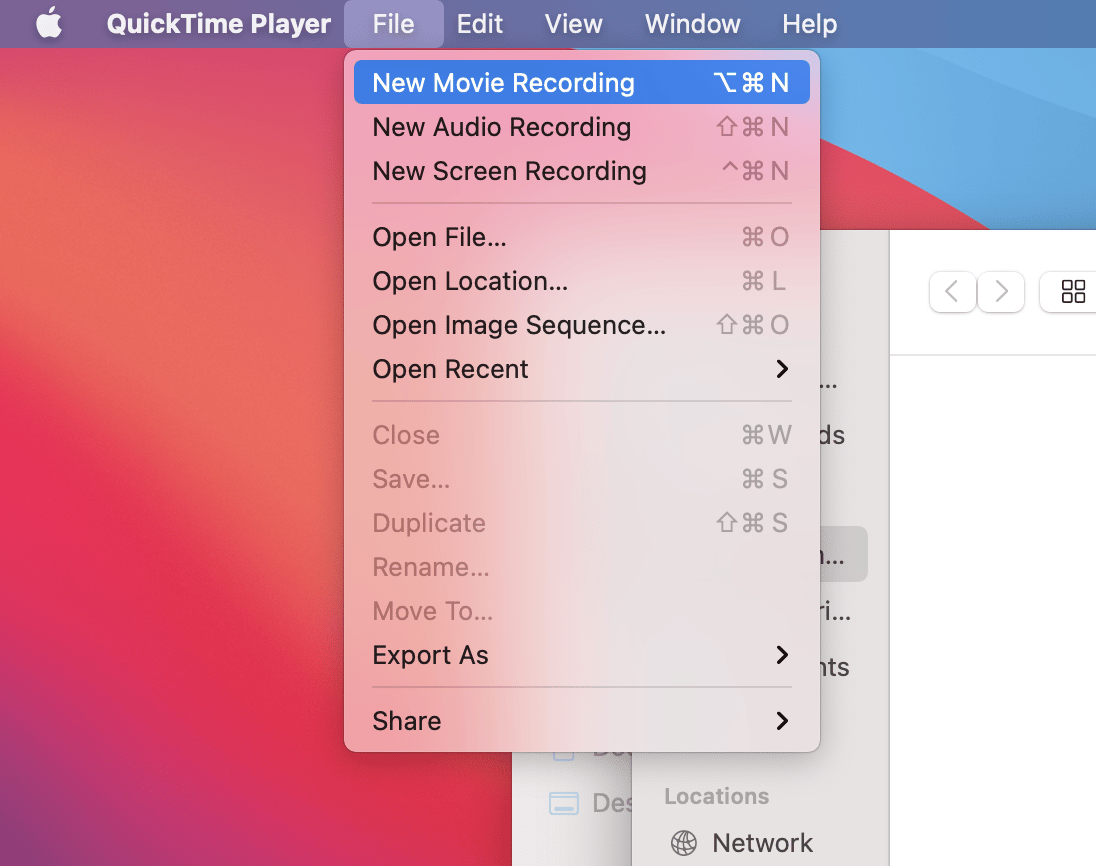
2. Open QuickTime on your Mac.
3. Click on “File” in the menu bar at the top of the screen.
4. Click “New Movie Recording.”
 5. Next to the red record button (bottom middle), click on the down arrow. Select your iPad/iPhone from the list of available devices. If it’s not there, try disconnecting and reconnecting your iPad/iPhone.
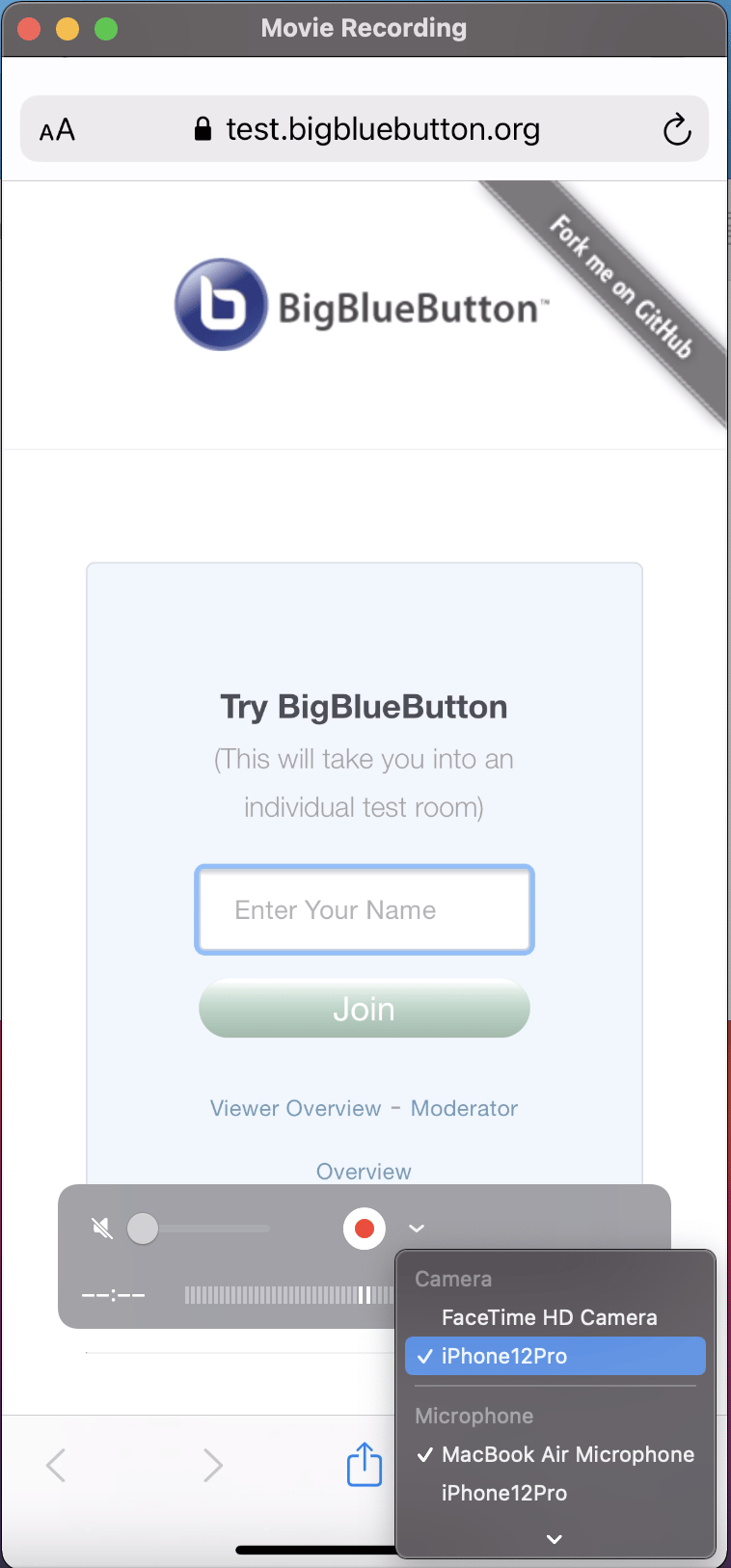 6. Your iPad/iPhone should now be fully mirrored on your computer, in the exact shape of your iPhone screen.
In order to share your iPad or iPhone screen during a BigBlueButton session, you must first also have a Mac on hand.
On your Mac, follow the steps in this article to share your iPad/iPhone screen to your Mac.
Once that is done, you can then share the iPad/iPhone screen in the BigBlueButton session by clicking the “Share screen” button.
6. Your iPad/iPhone should now be fully mirrored on your computer, in the exact shape of your iPhone screen.
In order to share your iPad or iPhone screen during a BigBlueButton session, you must first also have a Mac on hand.
On your Mac, follow the steps in this article to share your iPad/iPhone screen to your Mac.
Once that is done, you can then share the iPad/iPhone screen in the BigBlueButton session by clicking the “Share screen” button.
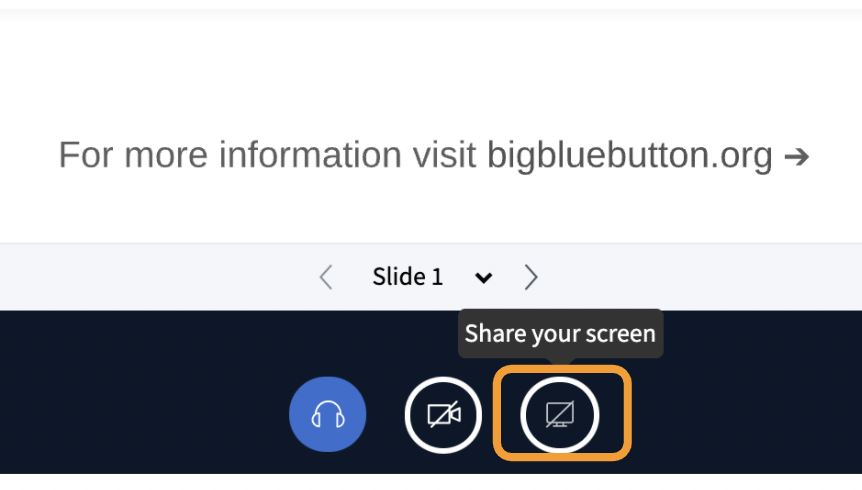 This will bring up the Screen Share menu.
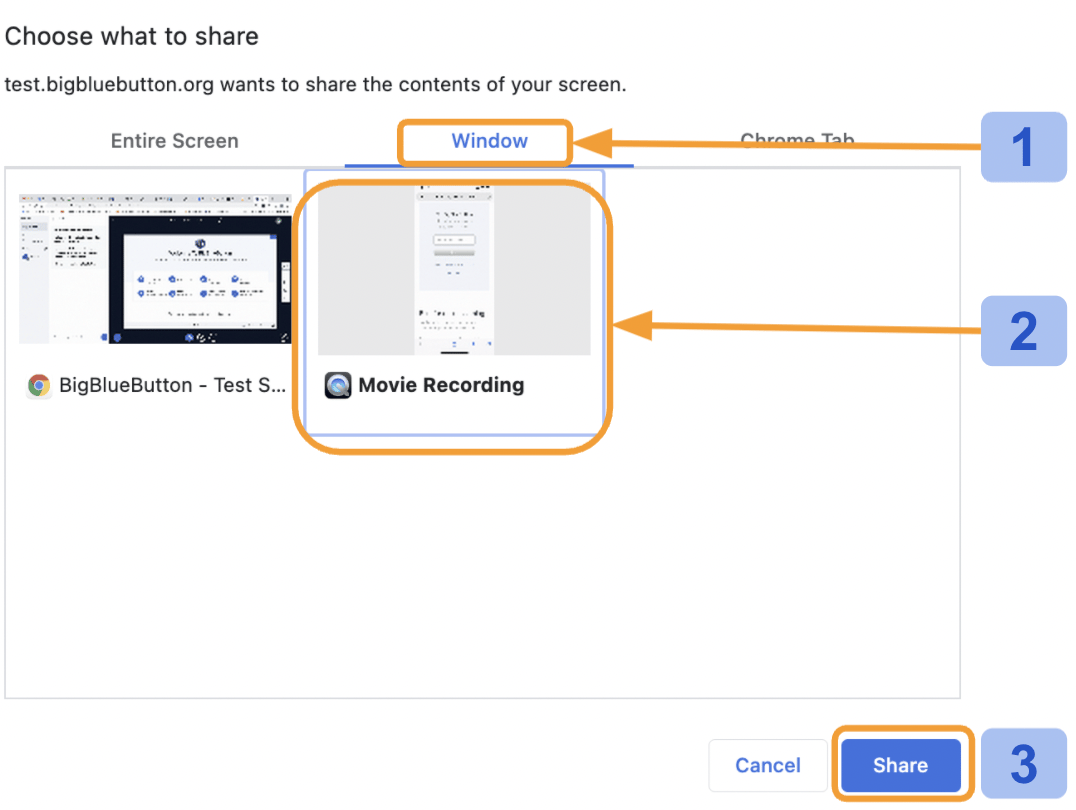 Once in the Screen Share menu, click Window [1] then select the Movie Recording [2] window which will be your iPad/iPhone screen. Finally, click the Share [3] button.
The rest of the session will now see the iPad/iPhone screen.
Once in the Screen Share menu, click Window [1] then select the Movie Recording [2] window which will be your iPad/iPhone screen. Finally, click the Share [3] button.
The rest of the session will now see the iPad/iPhone screen.
