Documentation Index
Fetch the complete documentation index at: https://bigbluebutton.com/docs/llms.txt
Use this file to discover all available pages before exploring further.
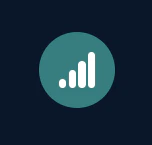
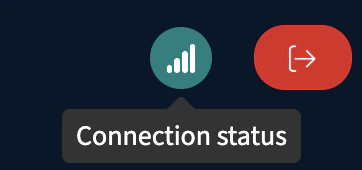
The connection status of your session is shown in the upper left hand corner of the screen.
The icon has three main colours which indicate your current connection status.
- Green - a good connection
- Purple - weakened connection
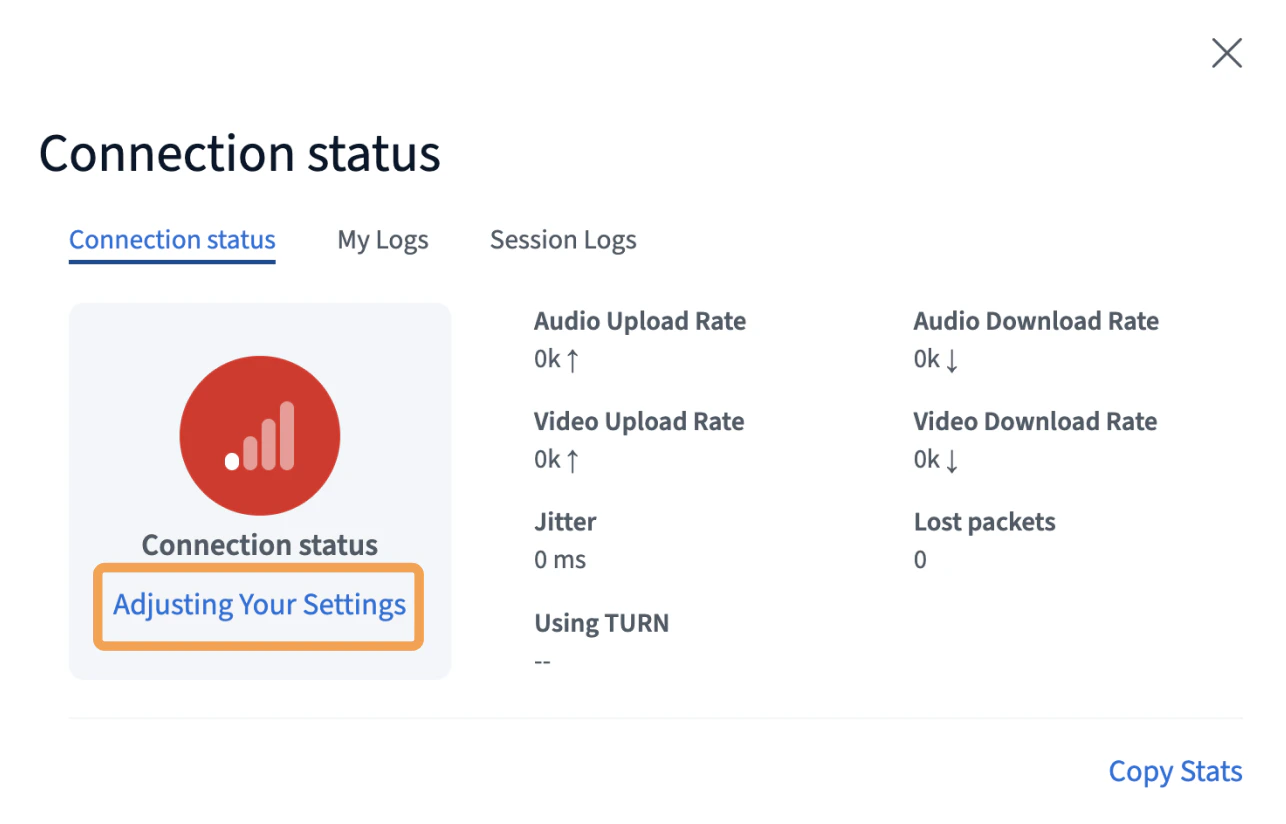
- Red - no connection
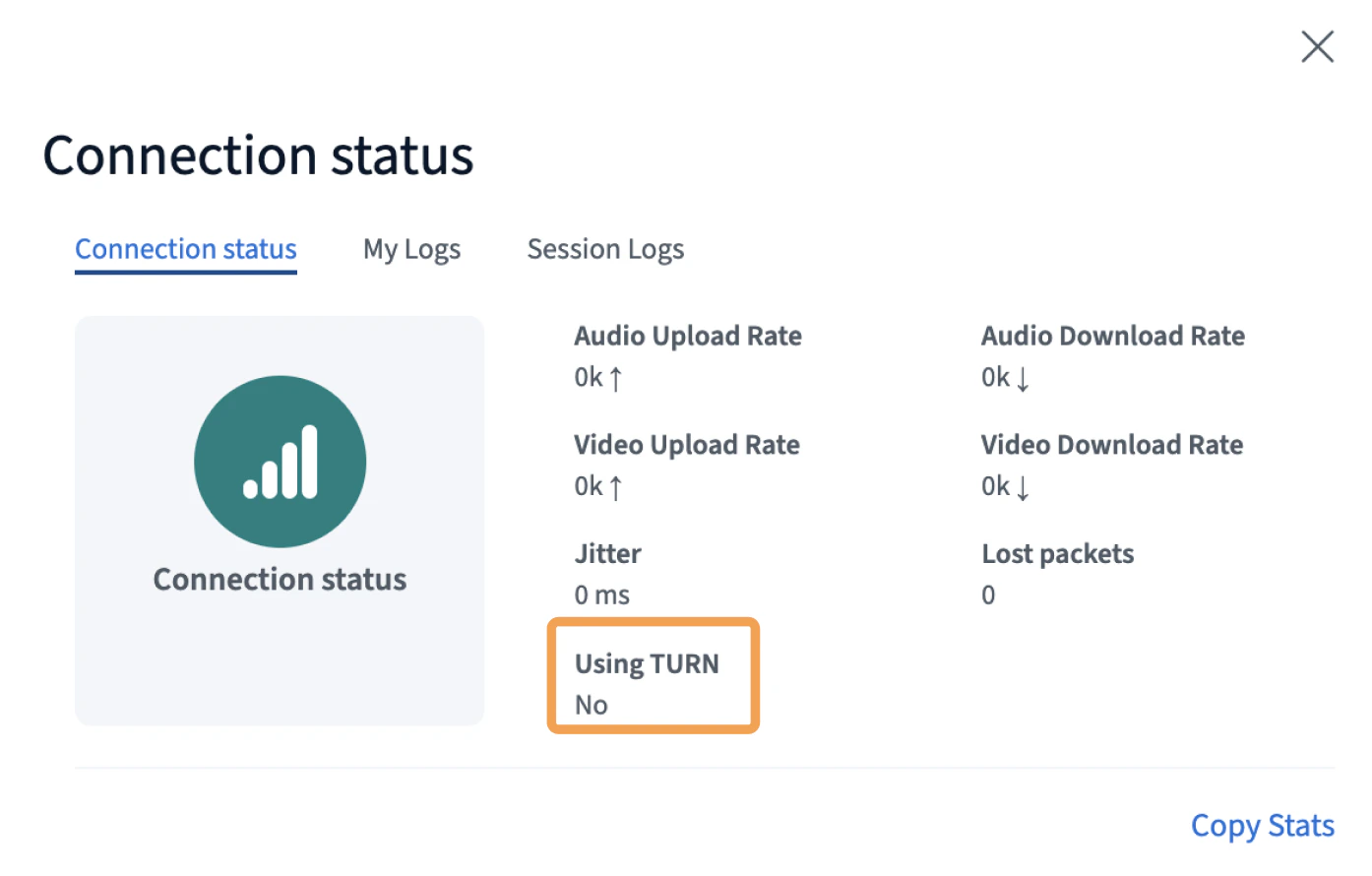
Clicking on the icon will provide more details regarding your connection.
Under the first tab of the connection status page, you will see details regarding your audio upload/download rates, video upload/download rates, Jitter, Lost packets, and if you are using a TURN server for your connection.
You can copy the connection status stats by using the Copy Stats button in the bottom right-hand corner.
This will copy the details of the meeting and user connection information into a text format. Below is an example of the copied stats.
{
  "user": {
    "time": "2023-07-13T13:21:08.349Z",
    "meeting_name": "Aaron's Room",
    "meeting_id": "b7db9414ab23e96cf46ad5aa2c258e901e1b4562-1689253801710",
    "connection_id": "Ak2Ykxo5gabwHkrS9",
    "user_id": "w_pkmy22xhzlip",
    "extern_user_id": "w_pkmy22xhzlip"
  },
  "audio": {
    "audioCurrentUploadRate": 0,
    "audioCurrentDownloadRate": 0,
    "jitter": 0,
    "packetsLost": 0
  },
  "video": {
    "videoCurrentUploadRate": 0,
    "videoCurrentDownloadRate": 0
  }
}
 *Session Logs are only available to the moderators and will show all issues for all users in the session.
Adjusting Your Connection Settings
When you lose connection to your session, the connection status will turn red, and you can change your **Data Saving **options by Adjusting Your Settings.