

Documentation Index
Fetch the complete documentation index at: https://bigbluebutton.com/docs/llms.txt
Use this file to discover all available pages before exploring further.
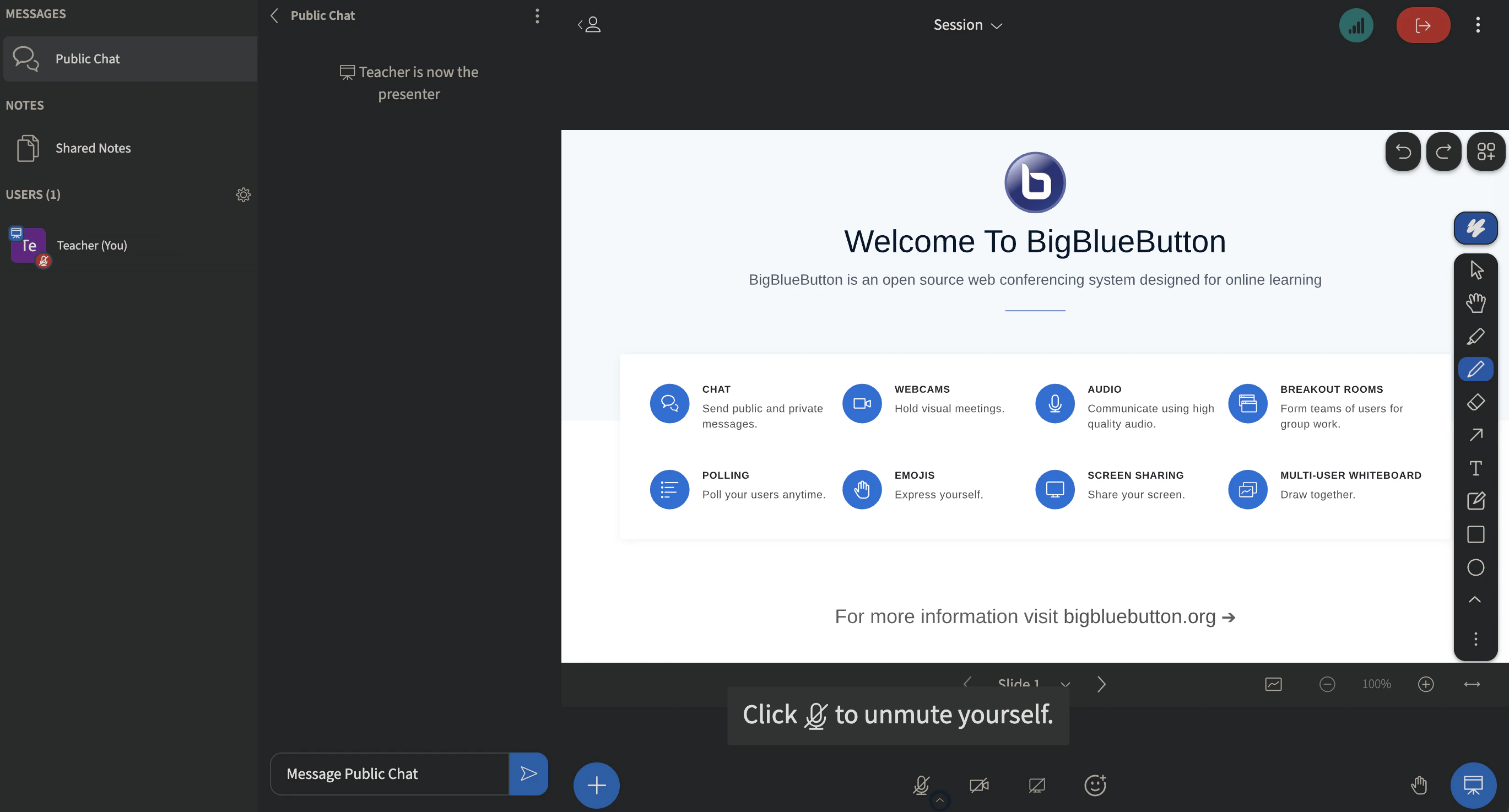
Any user can access additional settings, information, and assistance through the options menu
Located in the upper right-hand corner of the BigBlueButton interface, the options menu houses specific application settings and information for troubleshooting purposes. To open the menu, select the three dots (kebab menu) in the upper right-hand corner.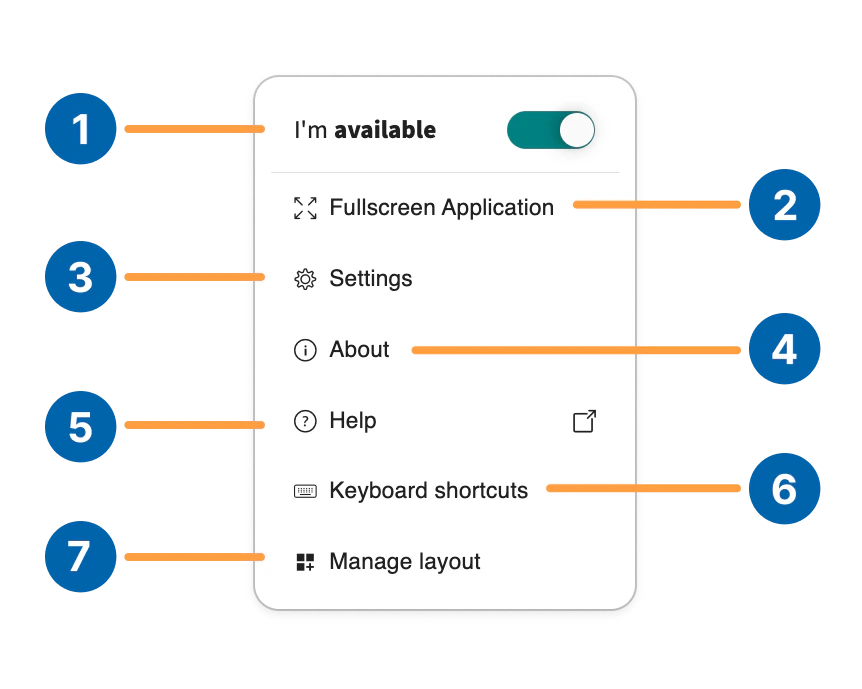
- Away Status [1] — updates user presence
- Make full screen [2] — enables full screen mode
- Settings [3] — access additional application settings
- About [4] — BigBlueButton copyright and build information
- Help [5] — access tutorial videos
- Keyboard shortcuts [6] — provides a list of hotkeys for quick keyboard navigation
Away Status
Setting to away will (a) pause your webcam, (b) mute your microphone, and (c) let everyone know in the chat you are away - all with a single click.Settings
The Settings menu houses several features that a user can enable or disable to customize their experience in the BigBlueButton session. Subsections of the settings menu include the applications menu and data savings menu.Application menu
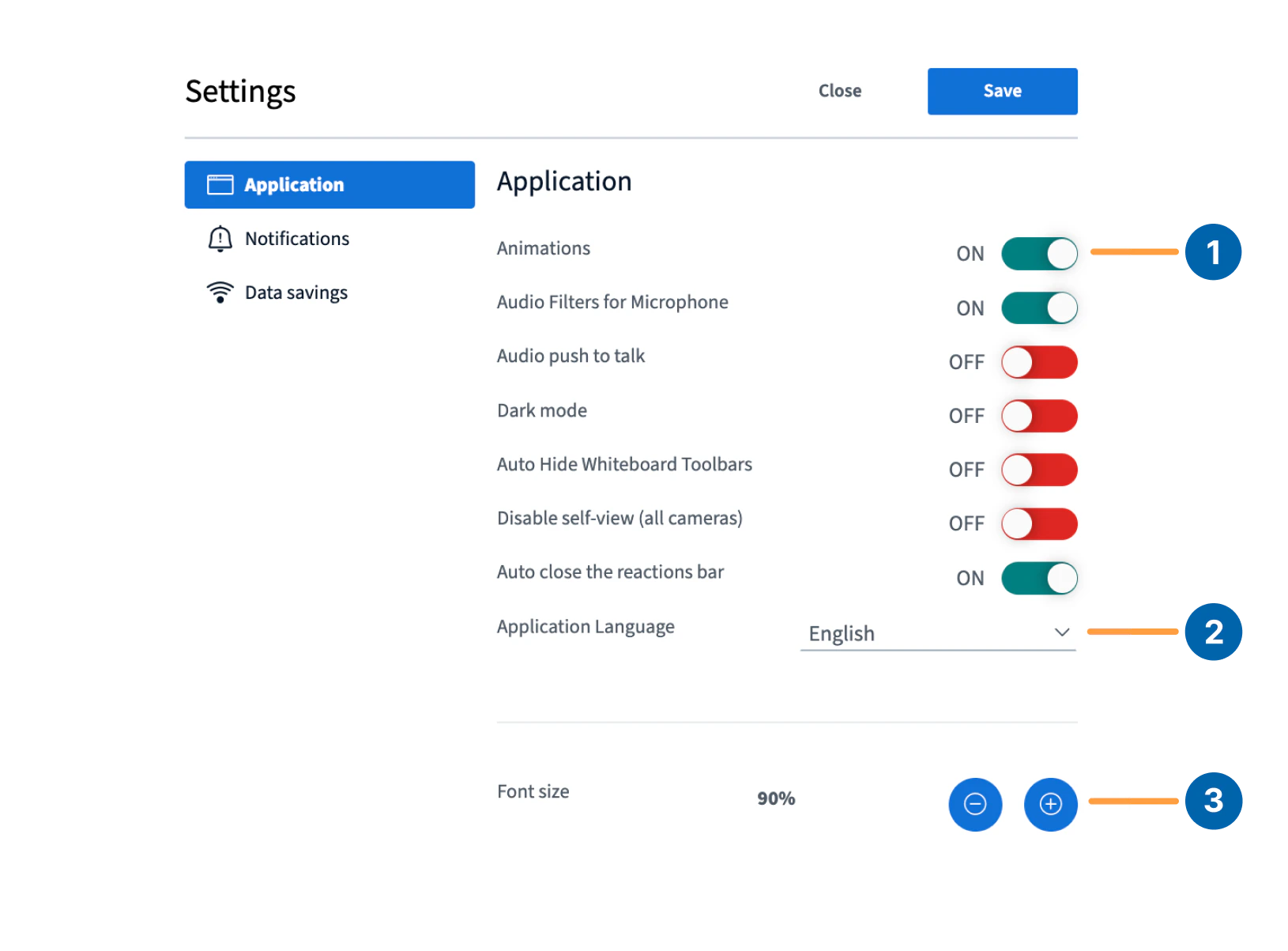
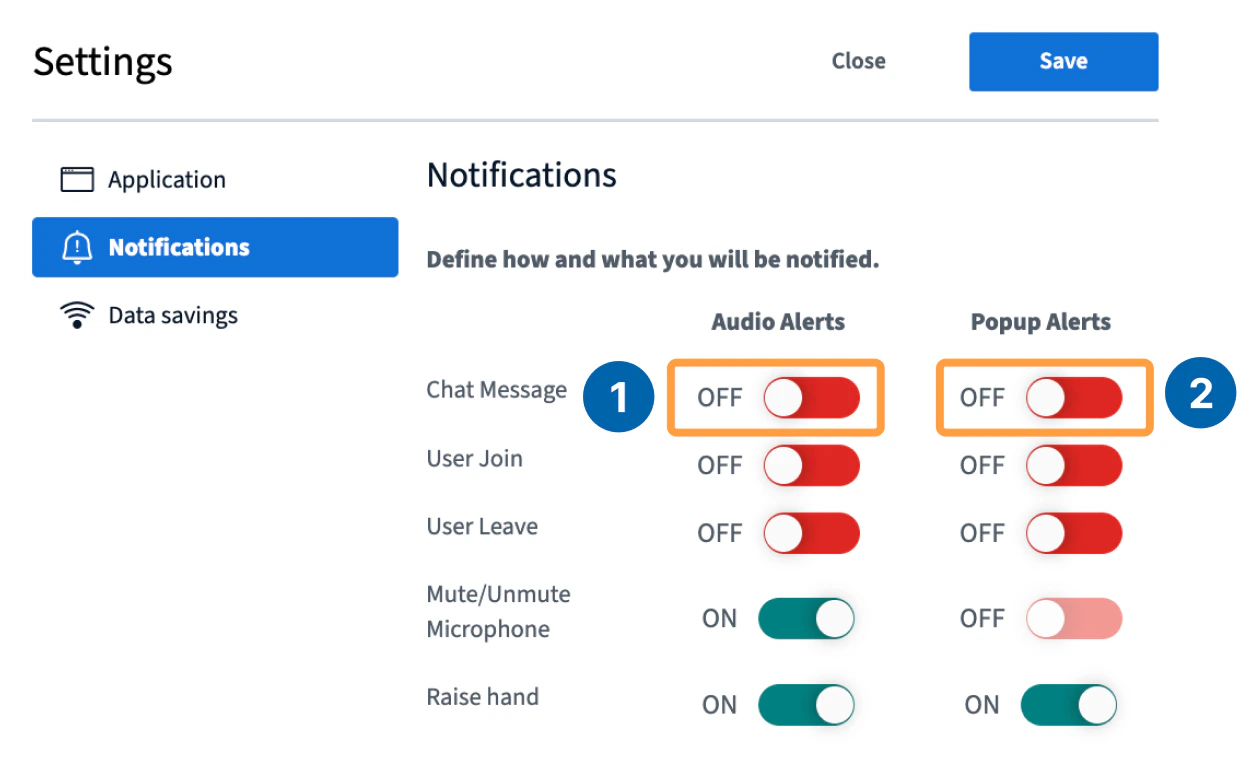
All alerts are in-browser only and do not behave like desktop push notifications.
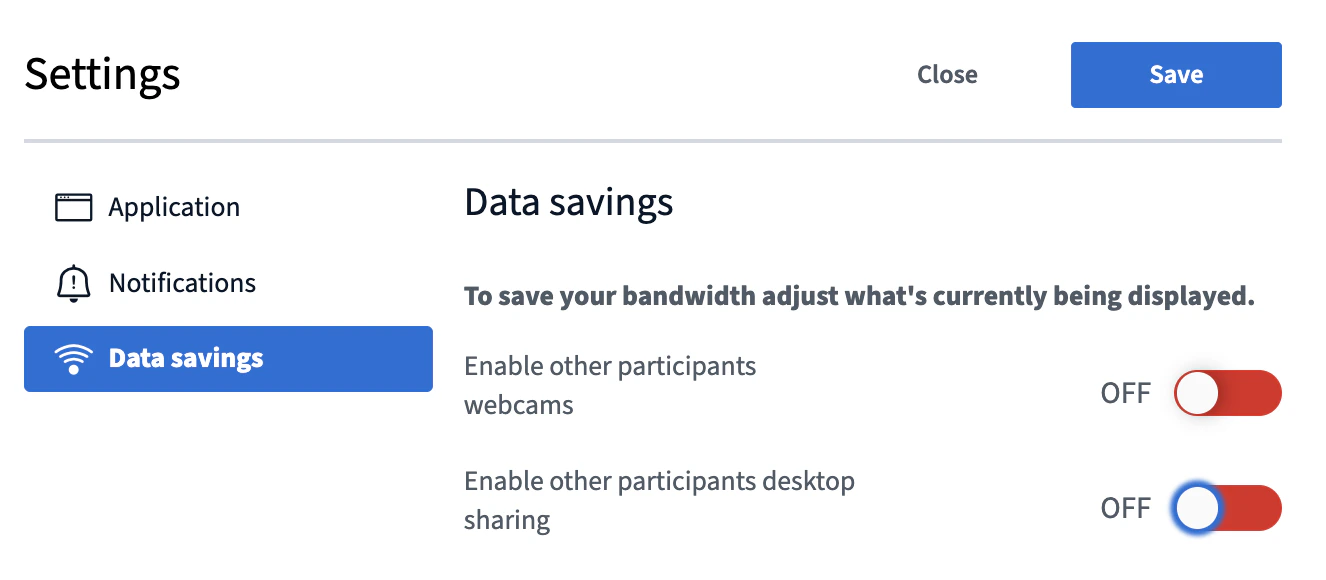
Data Savings
Settings found within the Data Savings menu are intended for users who are connecting from a mobile device or those connecting to networks performing under the recommended bandwidth requirements for optimal use of BigBlueButton.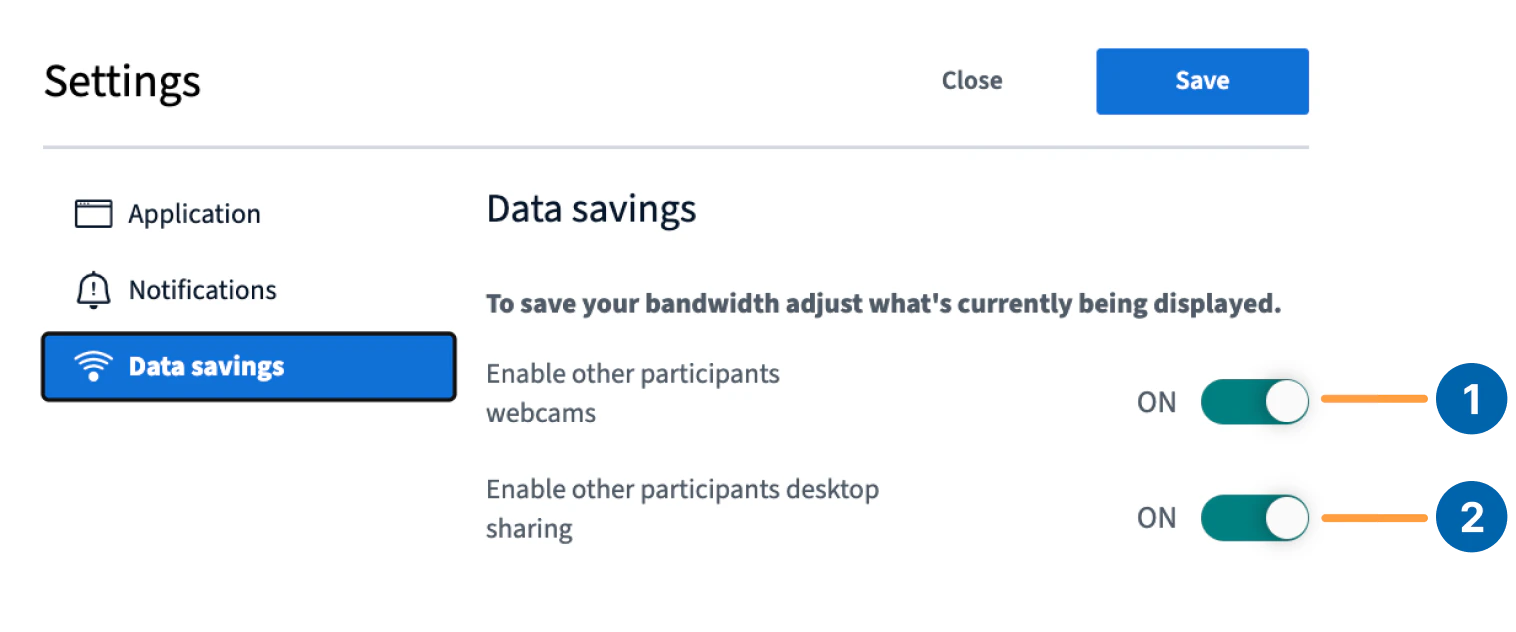
Dark Mode
To enable dark mode, switch the toggle on from the **Application settings **menu.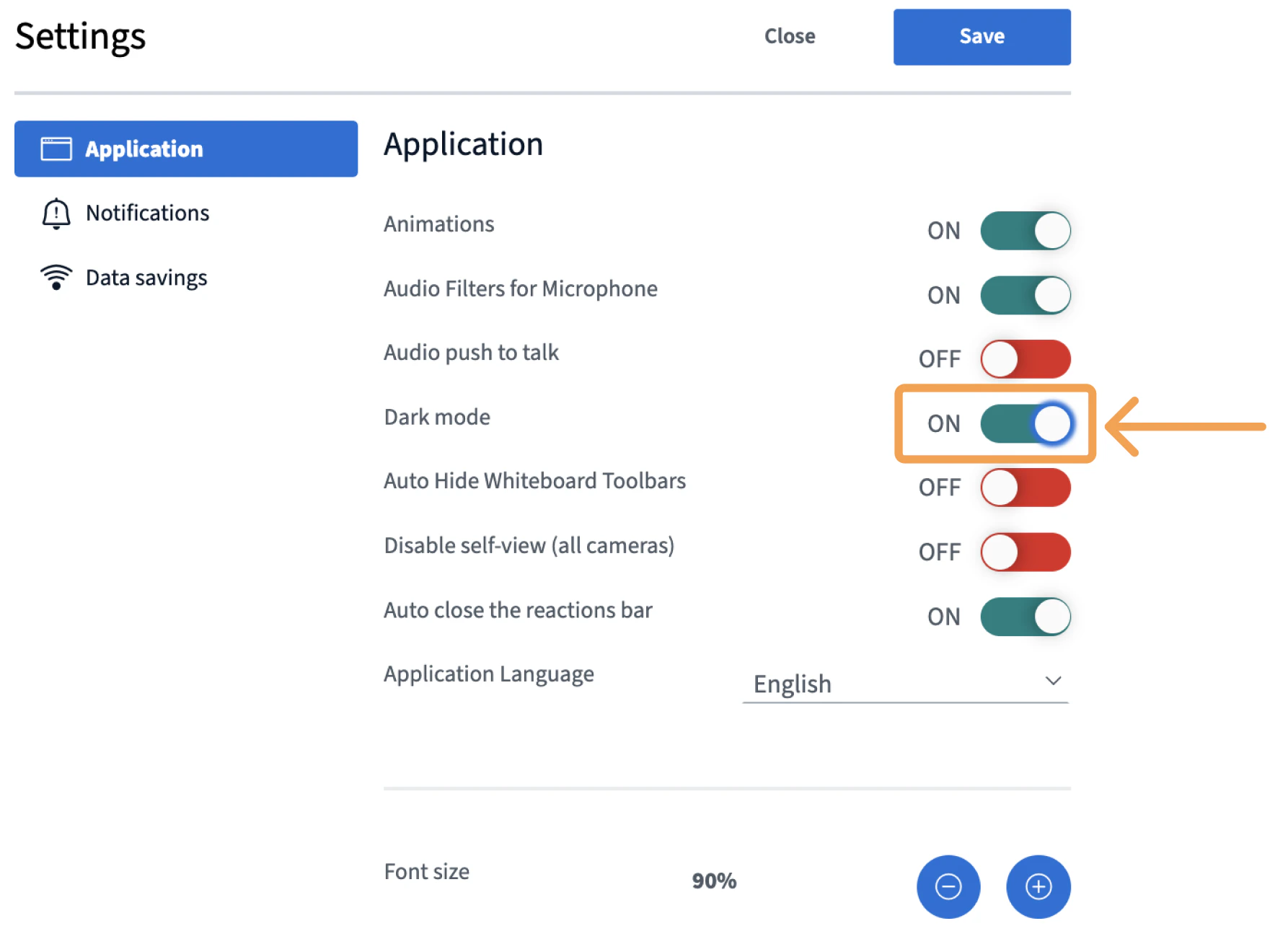
About
The about section houses the BigBlueButton copyright information and build number.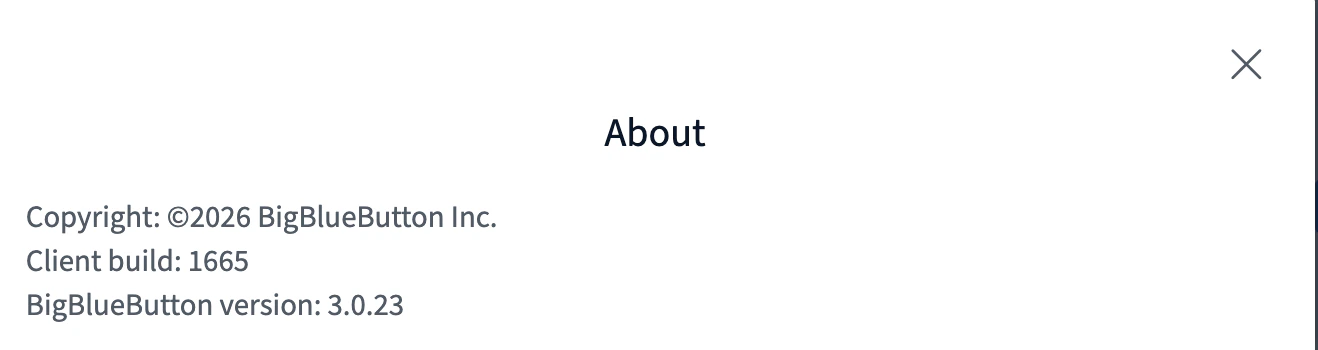
Help
The help button redirects you to specific help articles that assist with FAQs and other troubleshooting tips.Keyboard Shortcuts
The Keyboard shortcuts menu provides a listing of all the shortcut keys that can be used to navigate the BigBlueButton interface. Keyboard Shortcuts for Windows- General
- Presentation
- Whiteboard
- Gestures
| Function | Combo |
|---|---|
| Join audio | Alt + J |
| Toggle Raise Hand | Alt + R |
| Leave audio | Alt + L |
| Hold for Push-to-talk | M |
| Mute / Unmute | Alt + M |
| Open actions menu | Alt + A |
| Open Options | Alt + O |
| Open leave meeting menu | Alt + X |
| Toggle UserList | Alt + U |
| Hide private chat | Alt + H |
| Open debug window | Alt + K |
| Close private chat | Alt + G |
| Toggle Public Chat (User list must be open) | Alt + P |
| Open custom poll | Ctrl + Alt + P |
- General
- Presentation
- Whiteboard
- Gestures
| Function | Combo |
|---|---|
| Join audio | Control + Option + J |
| Toggle Raise Hand | Control + Option + R |
| Leave audio | Control + Option + L |
| Hold for Push-to-talk | M |
| Mute / Unmute | Control + Option + M |
| Open actions menu | Control + Option + A |
| Open Options | Control + Option + O |
| Open leave meeting menu | Control + Option + X |
| Toggle UserList | Control + Option + U |
| Hide private chat | Control + Option + H |
| Open debug window | Control + Option + K |
| Close private chat | Control + Option + G |
| Toggle Public Chat (User list must be open) | Control + Option + P |
| Open custom poll | Control + Option + P |