Documentation Index
Fetch the complete documentation index at: https://bigbluebutton.com/docs/llms.txt
Use this file to discover all available pages before exploring further.
Polling
As a presenter, you can use polling to engage students, perform test/exam reviews or pop quizzes, or use polling informally to collect information about your users.
By default, the first Moderator to enter the BigBlueButton session is allocated the presenter role capabilities; if you are a viewer, you will need to request presenter status from the moderator.
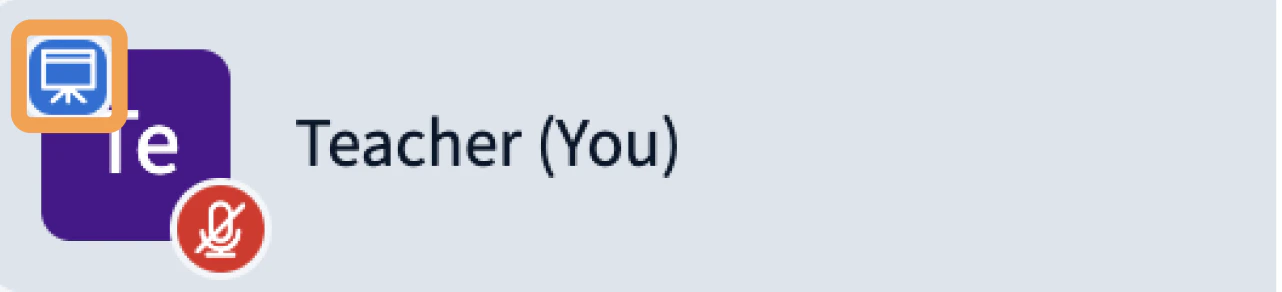
When a user has the presenter role, the presenter icon will appear over their avatar in the users list.
Start a poll
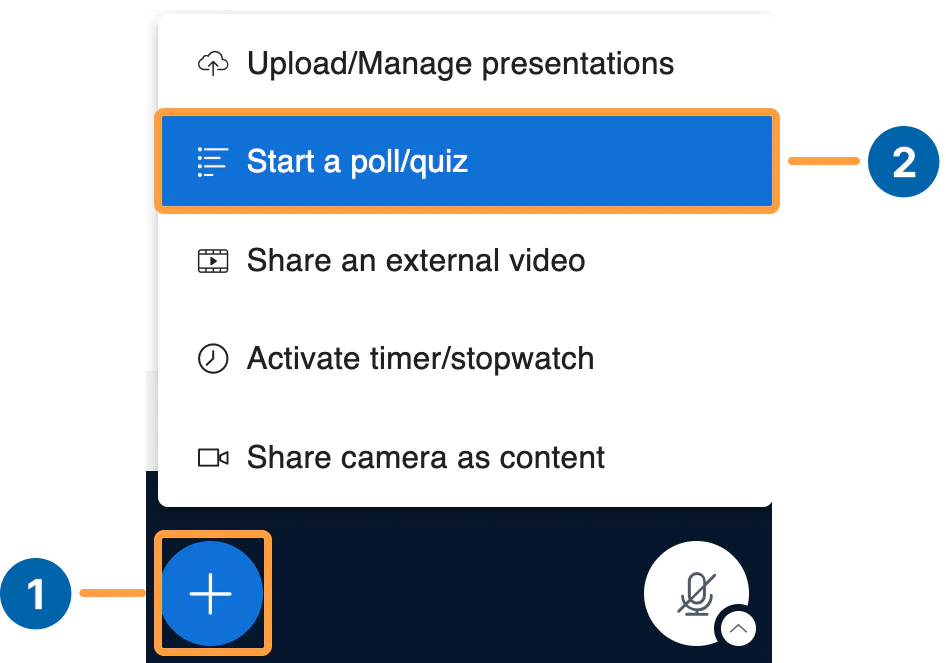
Select the Actions menu [1] in the lower left-hand corner of the presentation window, then Start a poll/quiz [2].
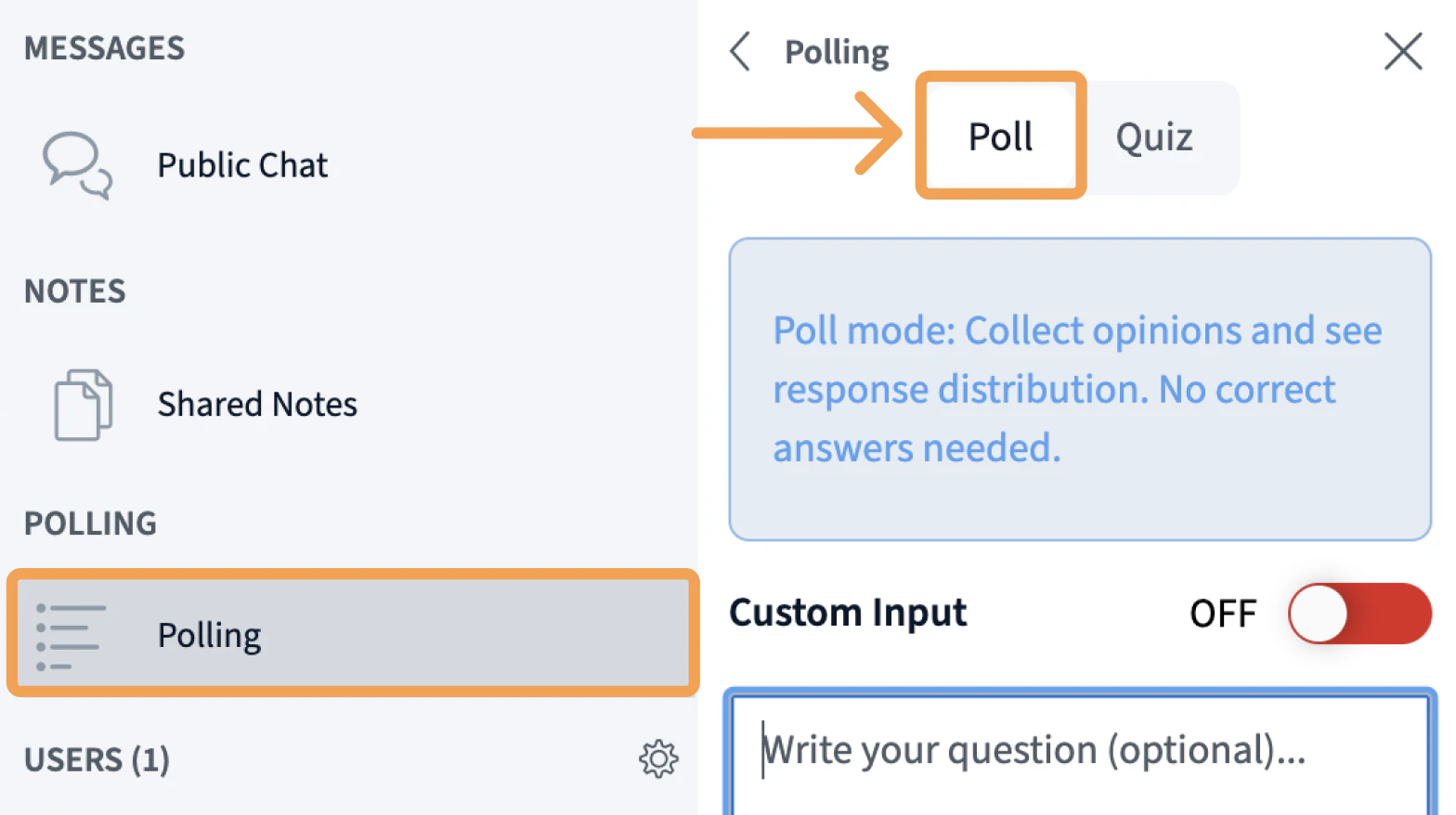
The Poll option is selected by default. The panel will open with several options. You can also enter a question for the poll in the Write your question [1] section. Select from the Response Types [2] options to initiate a poll.
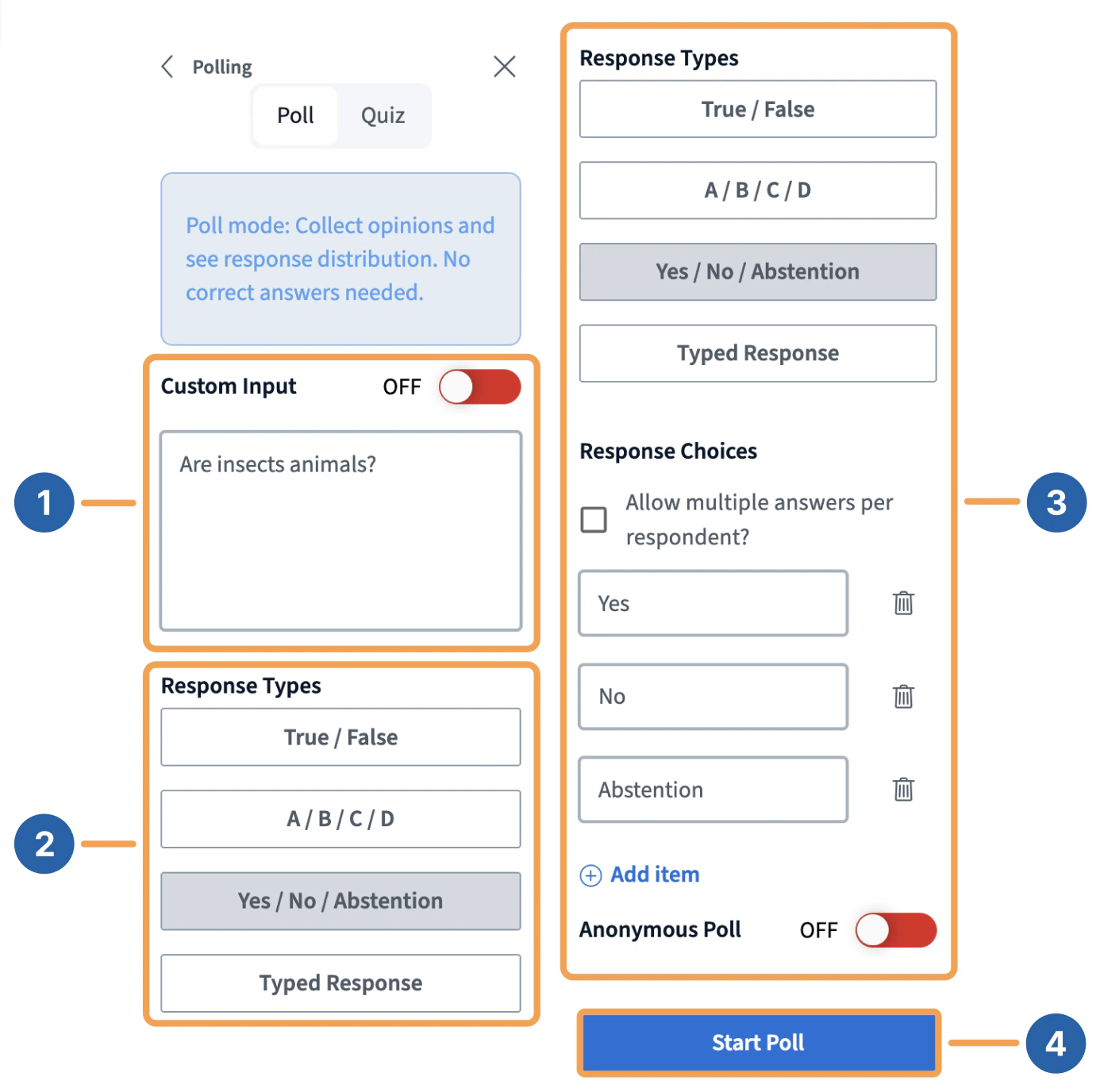
For example, if you write “Are insects animals?” [1], choose Yes / No / Abstention [2], and select Start poll [4], it will initiate the poll for all users.
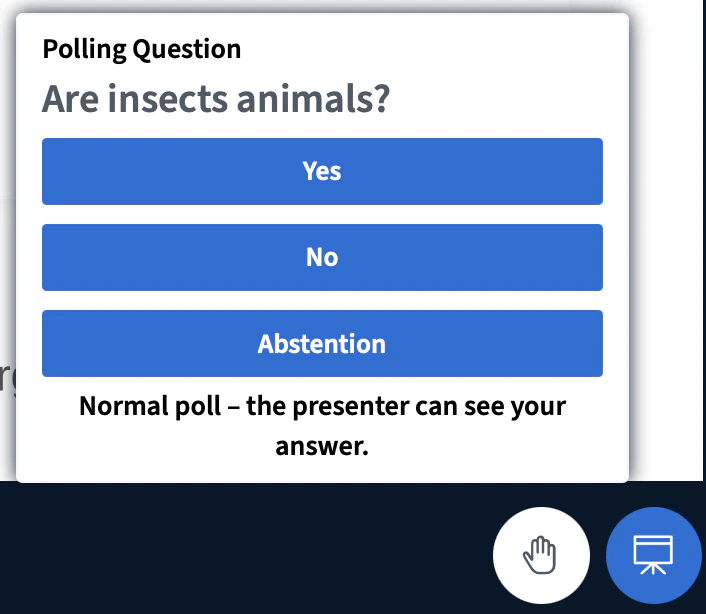
When Start Poll is selected, BigBlueButton will poll all users:
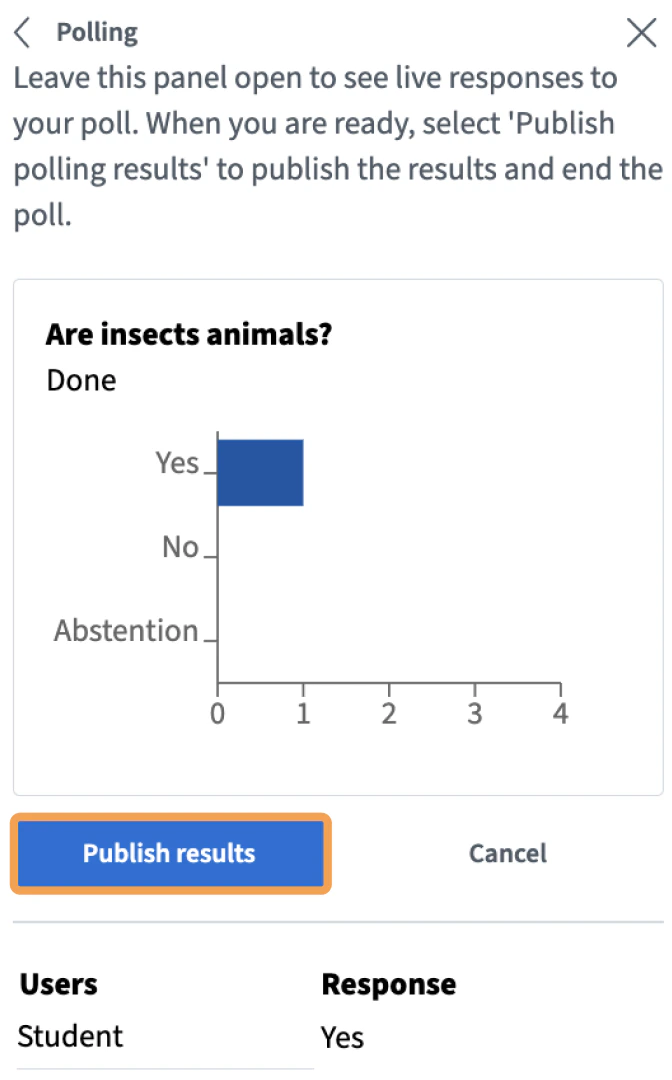
As users respond, such as clicking False, the presenter will see the live results.
Here the poll/quiz panel shows the Yes response from the student. Note: Selecting Anonymous Poll will not show the student’s name for each result.
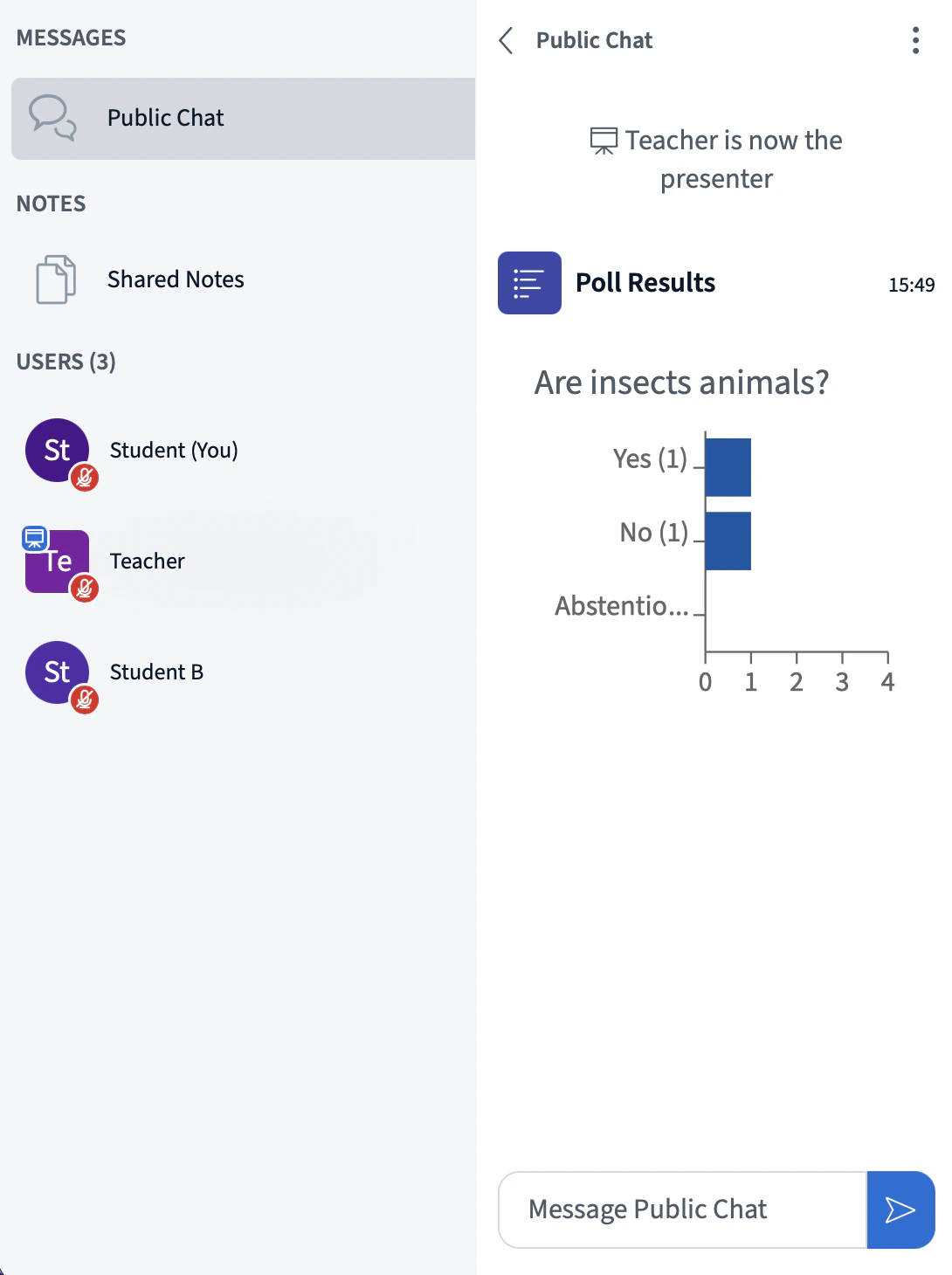
Selecting Publish results will both publish the results to the chat:
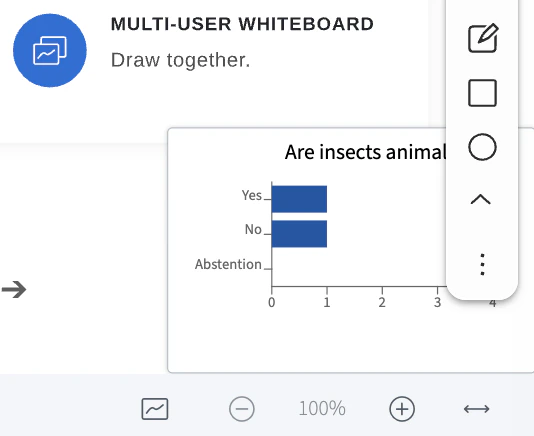
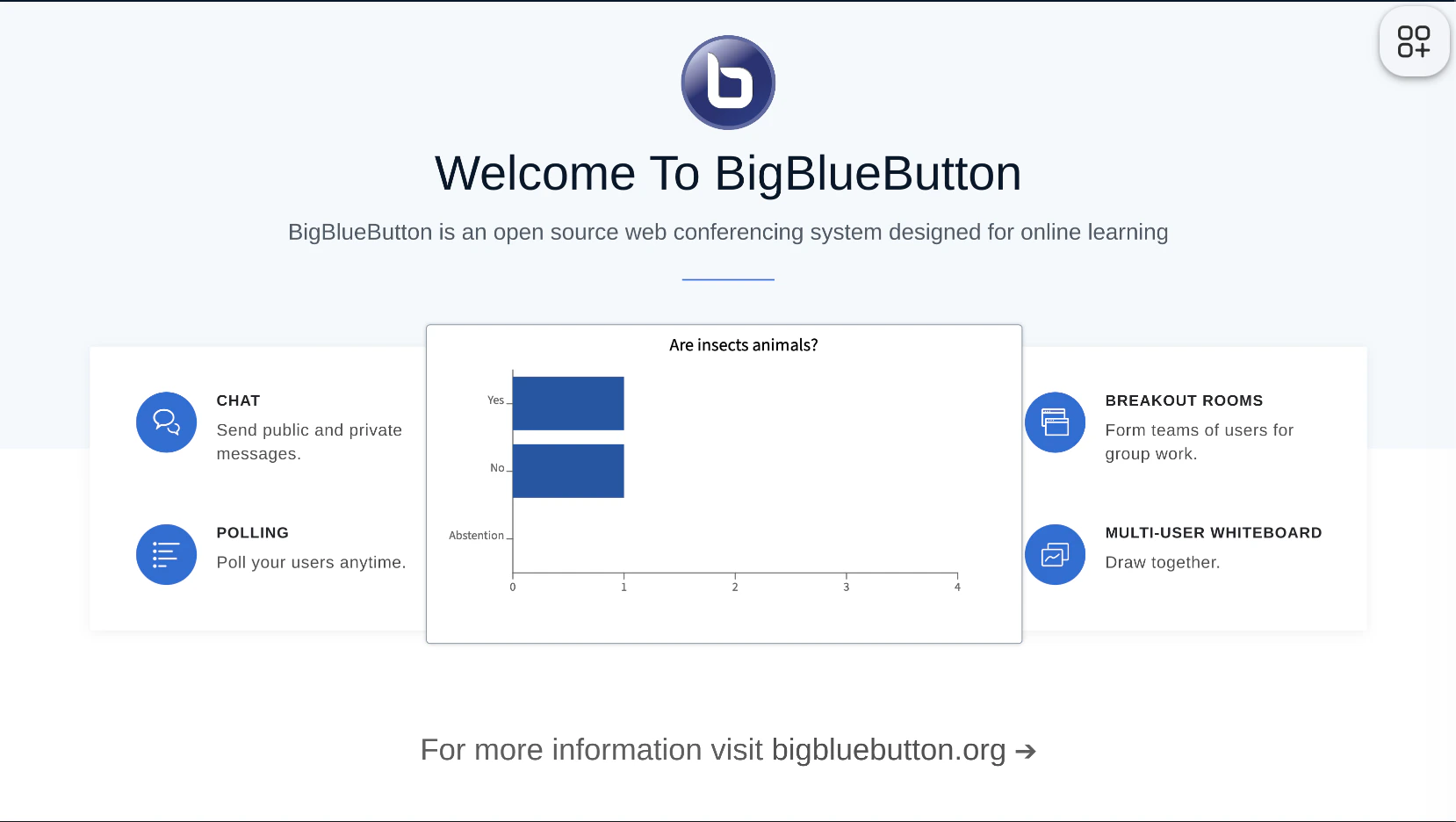
and to the slide.
The published poll results can be moved, resized, deleted, or duplicated on the whiteboard.
Published results appear in recordings both in the chat and slide as well.
Quizzing
BigBlueButton now supports quizzing, which you can think of as polls with a correct answer.
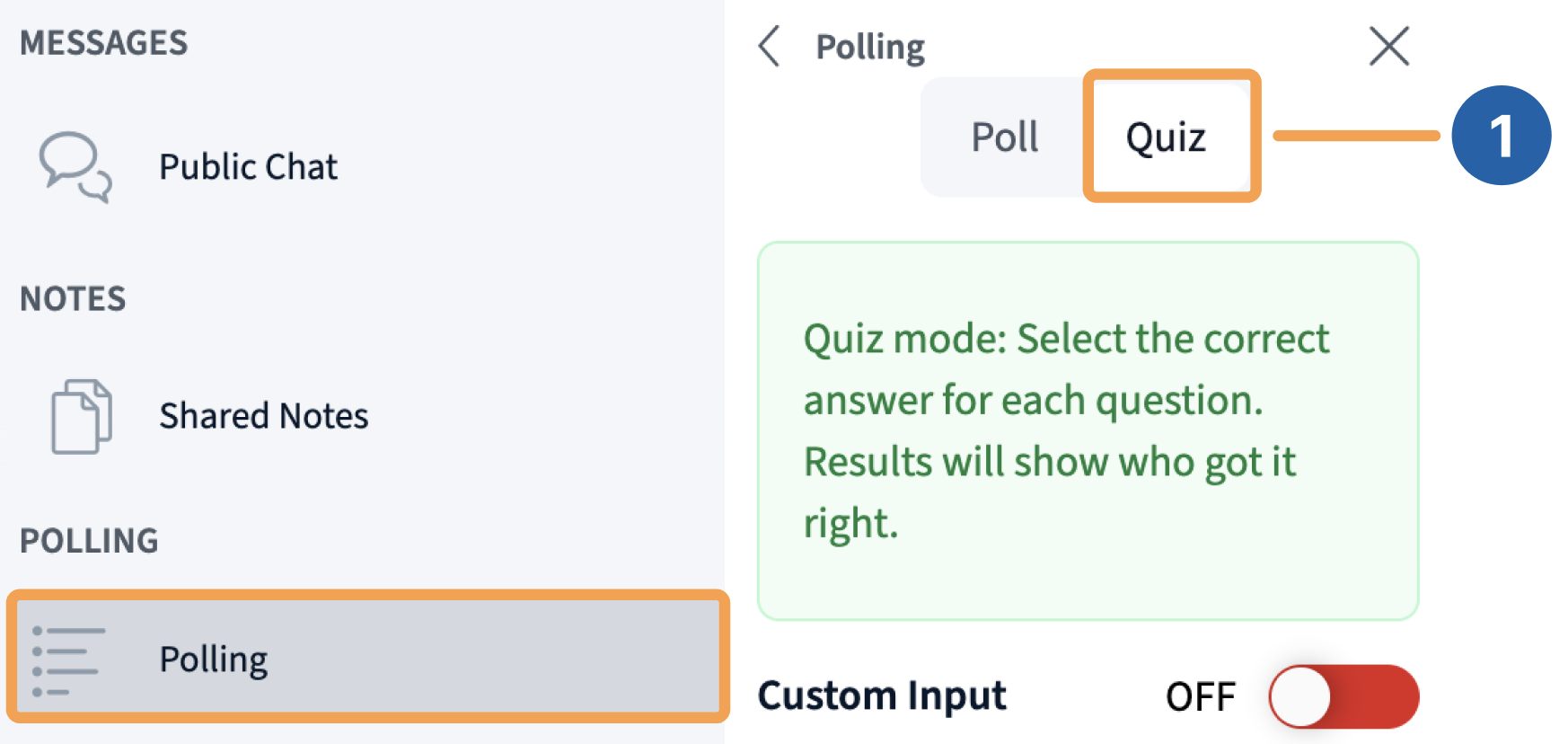
To do a quiz, select Quiz [1] and the options now show response types with multiple choices.
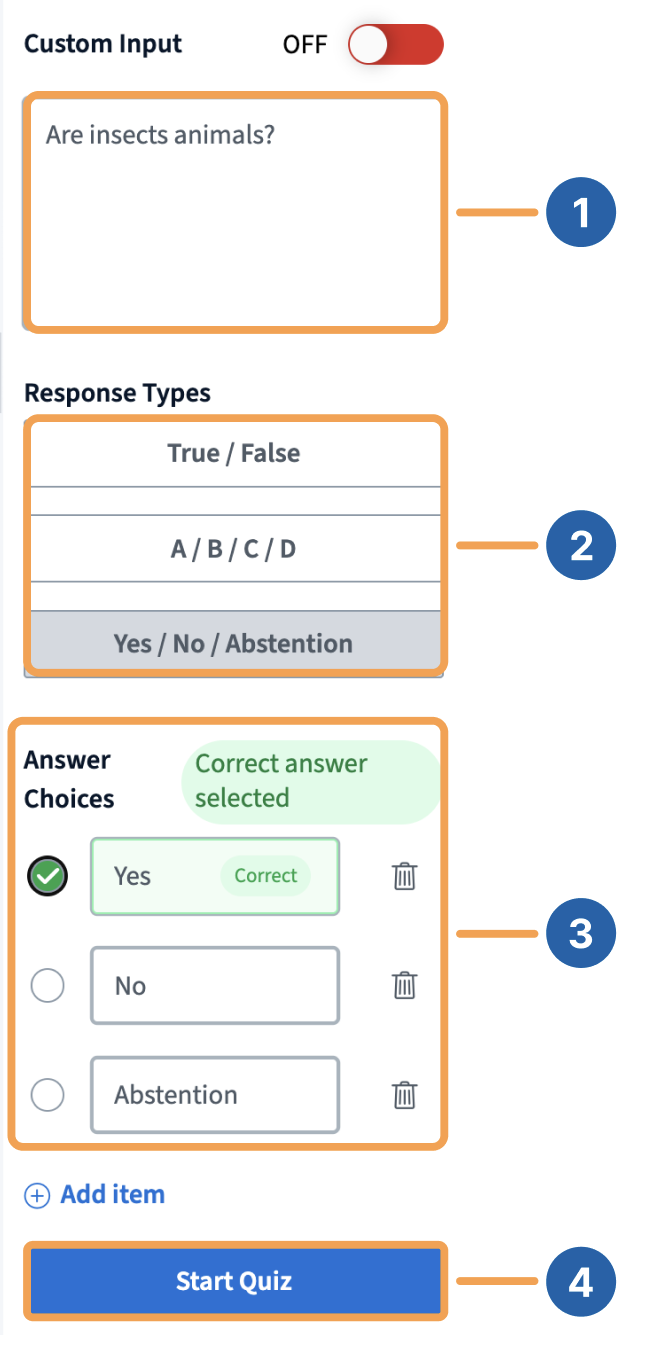
After selecting a Quiz, you can enter a question, such as “Are insects animals?” [1], choose Yes / No / Abstention [2], select True [3] as the correct answer, and select Start quiz [4].
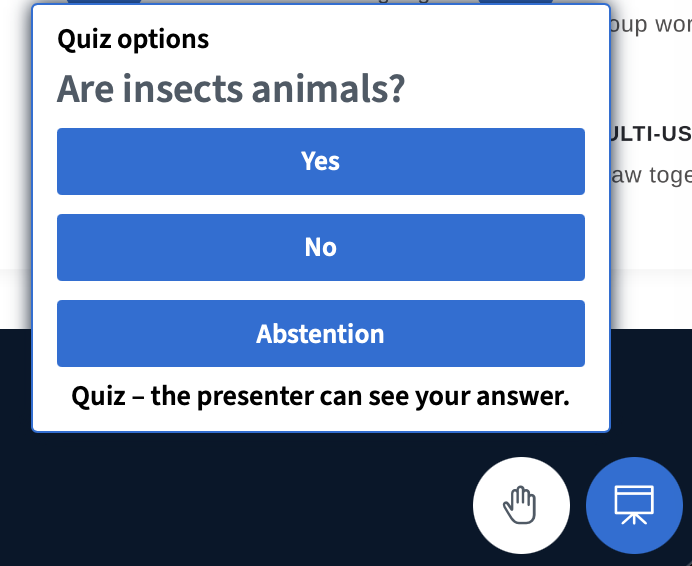
After you select Start Quiz, users will see a prompt to respond to the quiz.
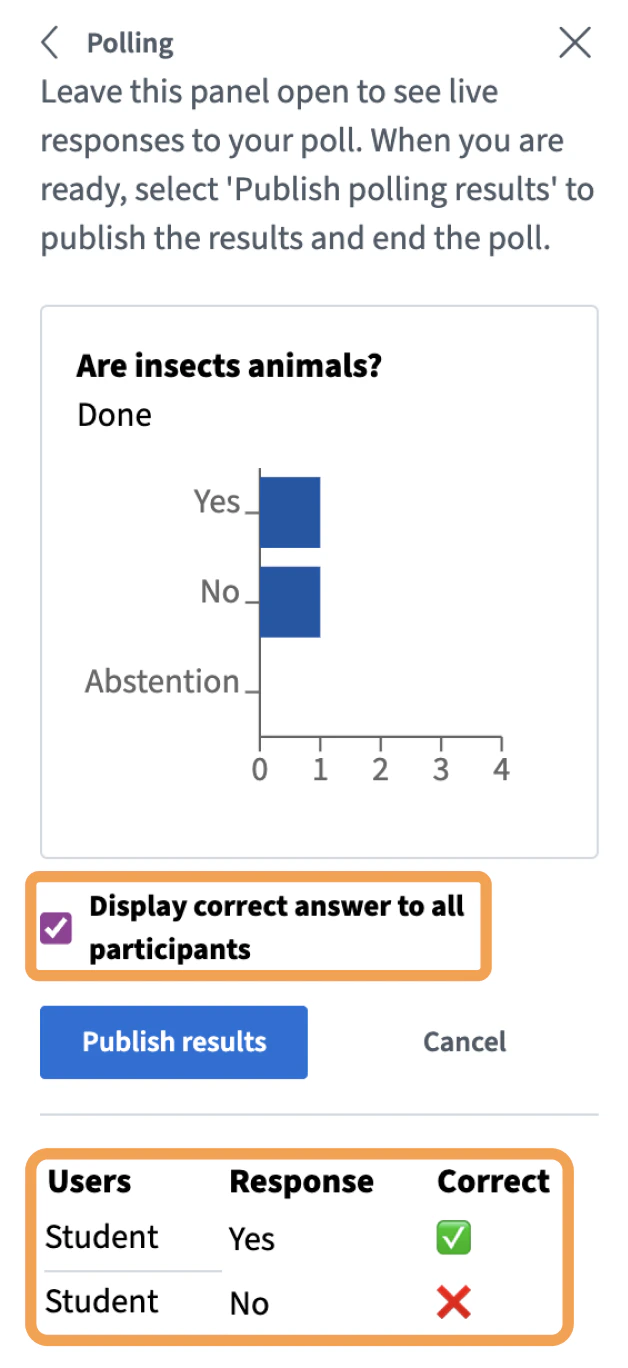
As before, the presenter will see the live results. Since it’s a quiz with a correct answer, BigBlueButton will indicate if the student selected the correct answer.
When publishing the results, it will also show the correct answer unless you unselect Display correct answers to all participants.
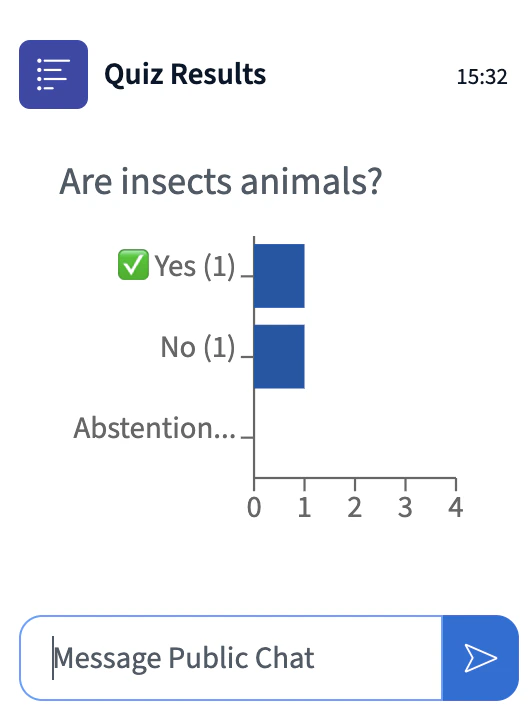
Here is what the published results look like in the chat with the correct result indicated.
You can also use quizzing with Smart Slides. The following video gives you an overview of how this works.