Documentation Index
Fetch the complete documentation index at: https://bigbluebutton.com/docs/llms.txt
Use this file to discover all available pages before exploring further.
Upload documents and enable them for download
In order to upload documents and enable them for download, you must first have the presenter role. By default, the first Moderator to enter the BigBlueButton session is allocated presenter role capabilities; if you are a viewer, you will need to request presenter status from the moderator.
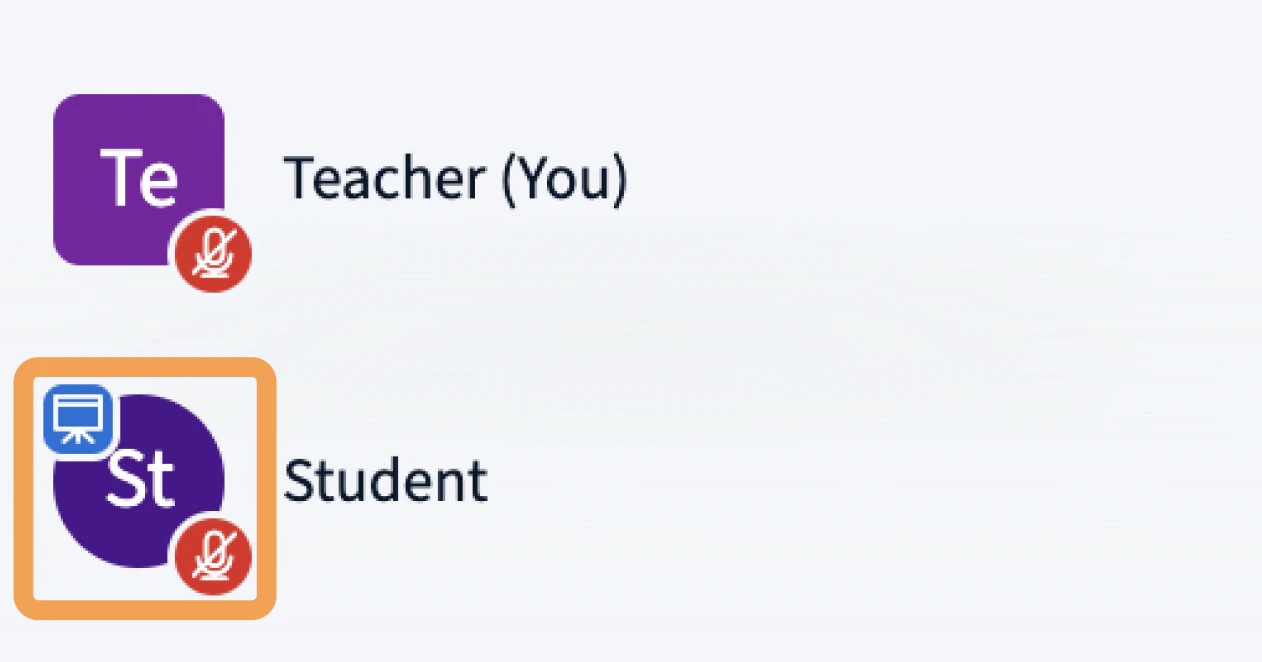
When a user has the presenter role, the presenter icon will appear over their avatar in the users list.
Maximum size is 30 MB or 150 pages per document; you can upload multiple documents into BigBlueButton as long as they are under the size restrictions.
BigBlueButton will accept Office documents (.doc .docx .pptx), text documents (.txt), images (.png, .jpg) and Adobe Acrobat documents (.pdf); we recommend converting documents to .pdf prior to uploading for best results.
Upload a presentation
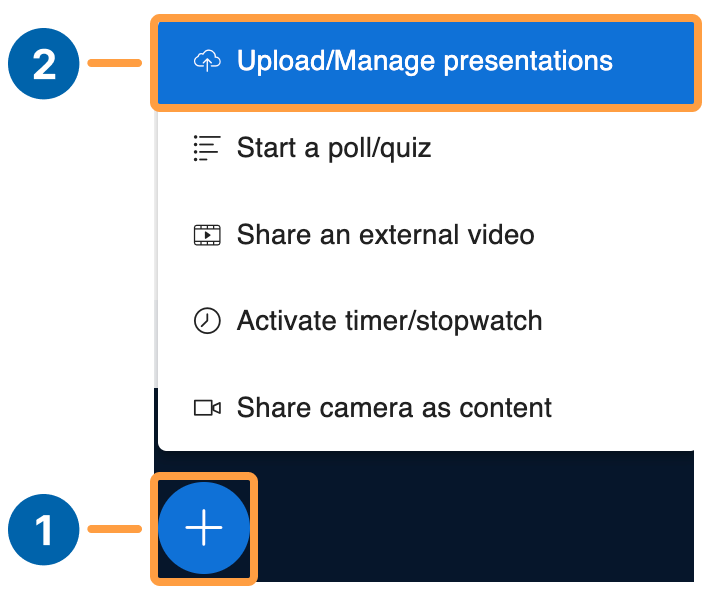
Select the Actions menu [1] in the lower left-hand corner of the presentation window, then choose Upload/Manage presentations [2].
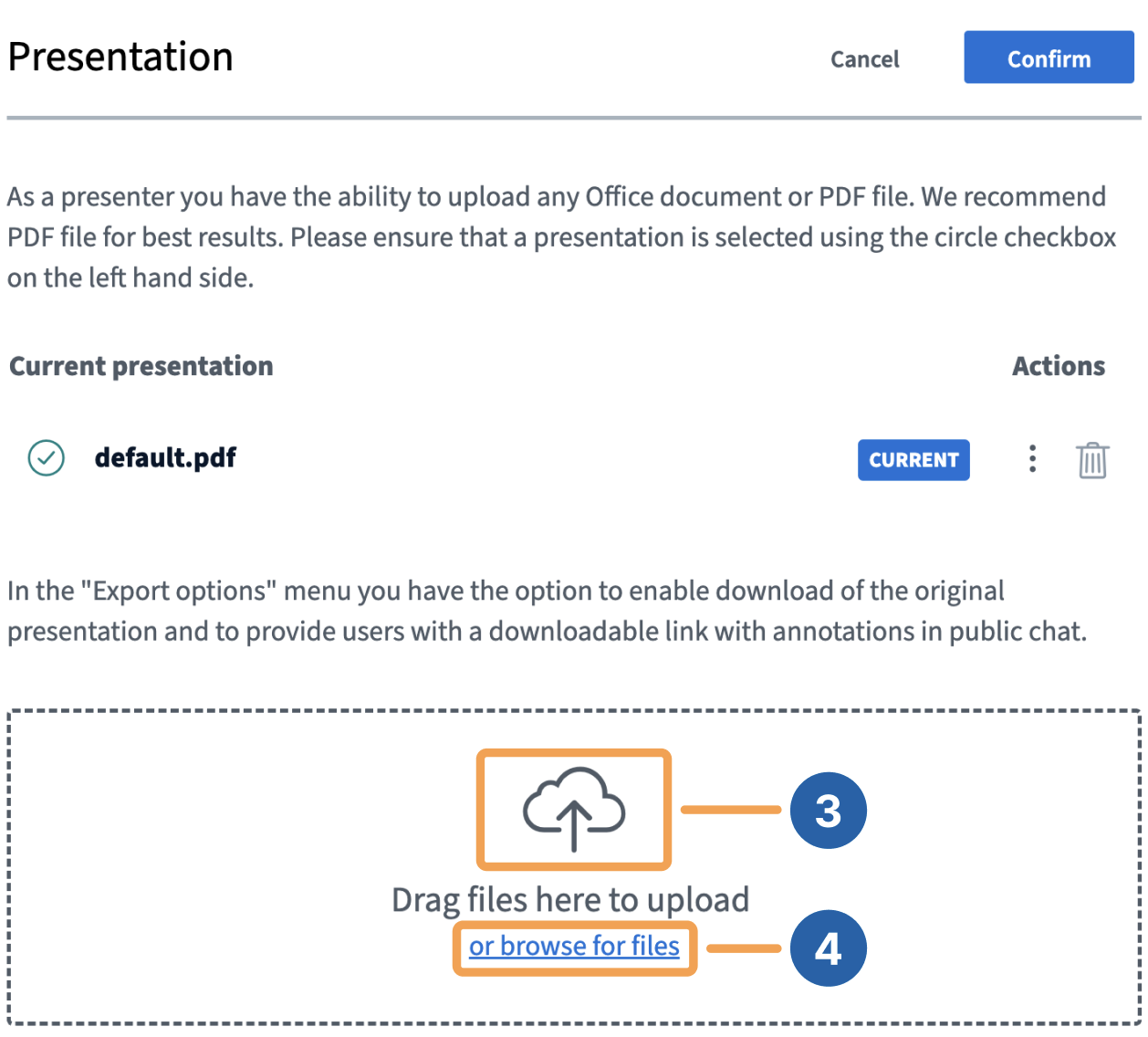
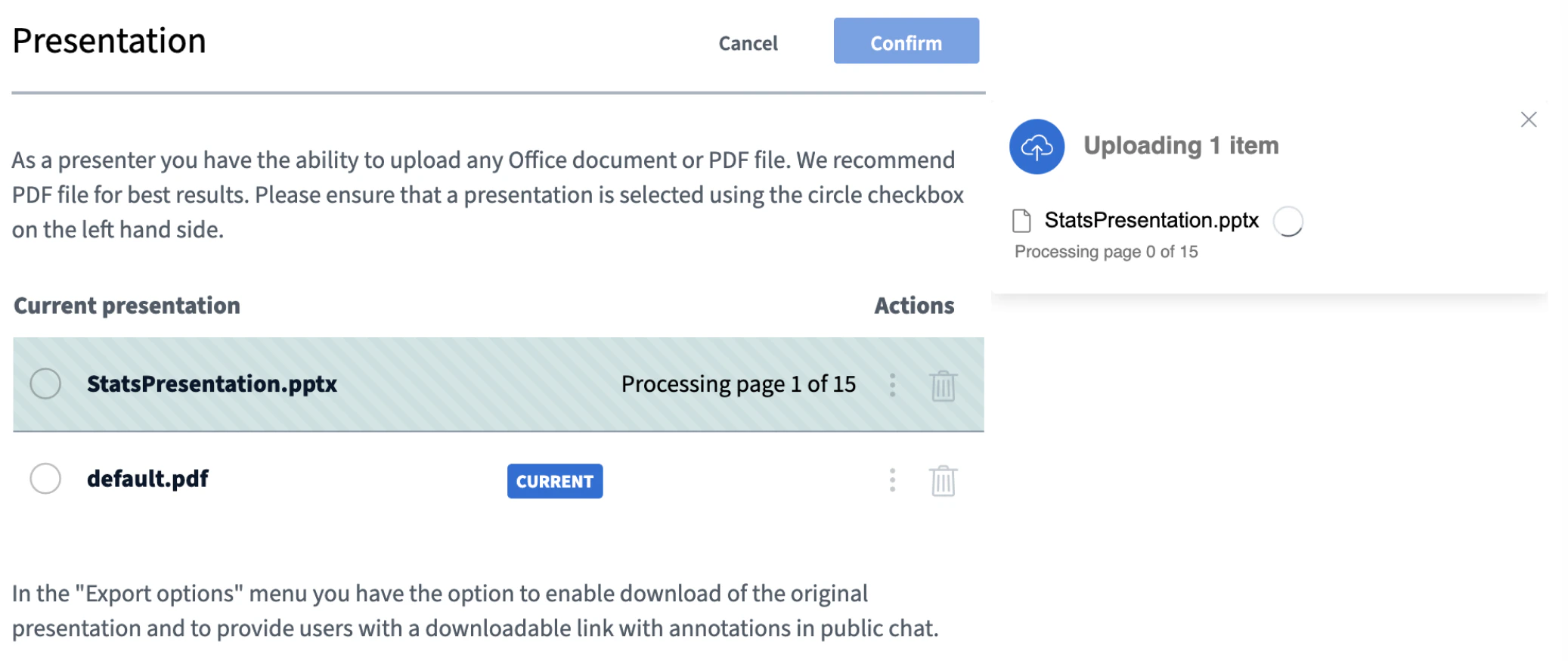
The BigBlueButton presentation uploader will appear. The uploader allows you to drag and drop [3] files into the uploader or browse for files [4] on your OS.
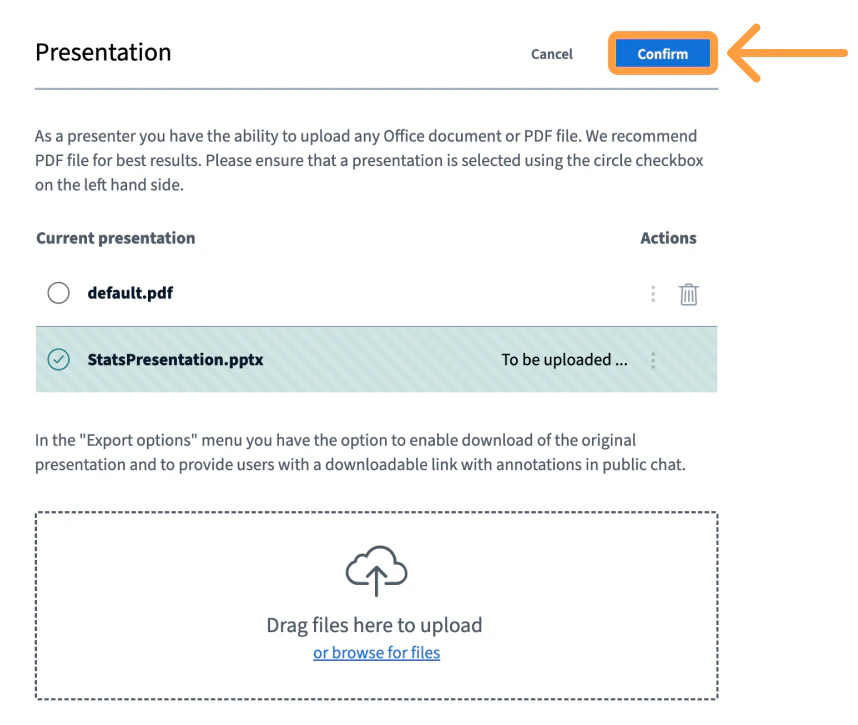
When uploading one or multiple files at once, be sure to set the file you’d like to be displayed by default, then check the green circle to the right of the document. Select Confirm to upload your files.
A prompt will appear on the main session screen confirming your uploads and converting the files. You can always return back to the Upload/Manage presentations menu and change your presentation.
Depending on the size of your document, it may take several moments for it to convert and finally upload to the meeting.
Enable for download
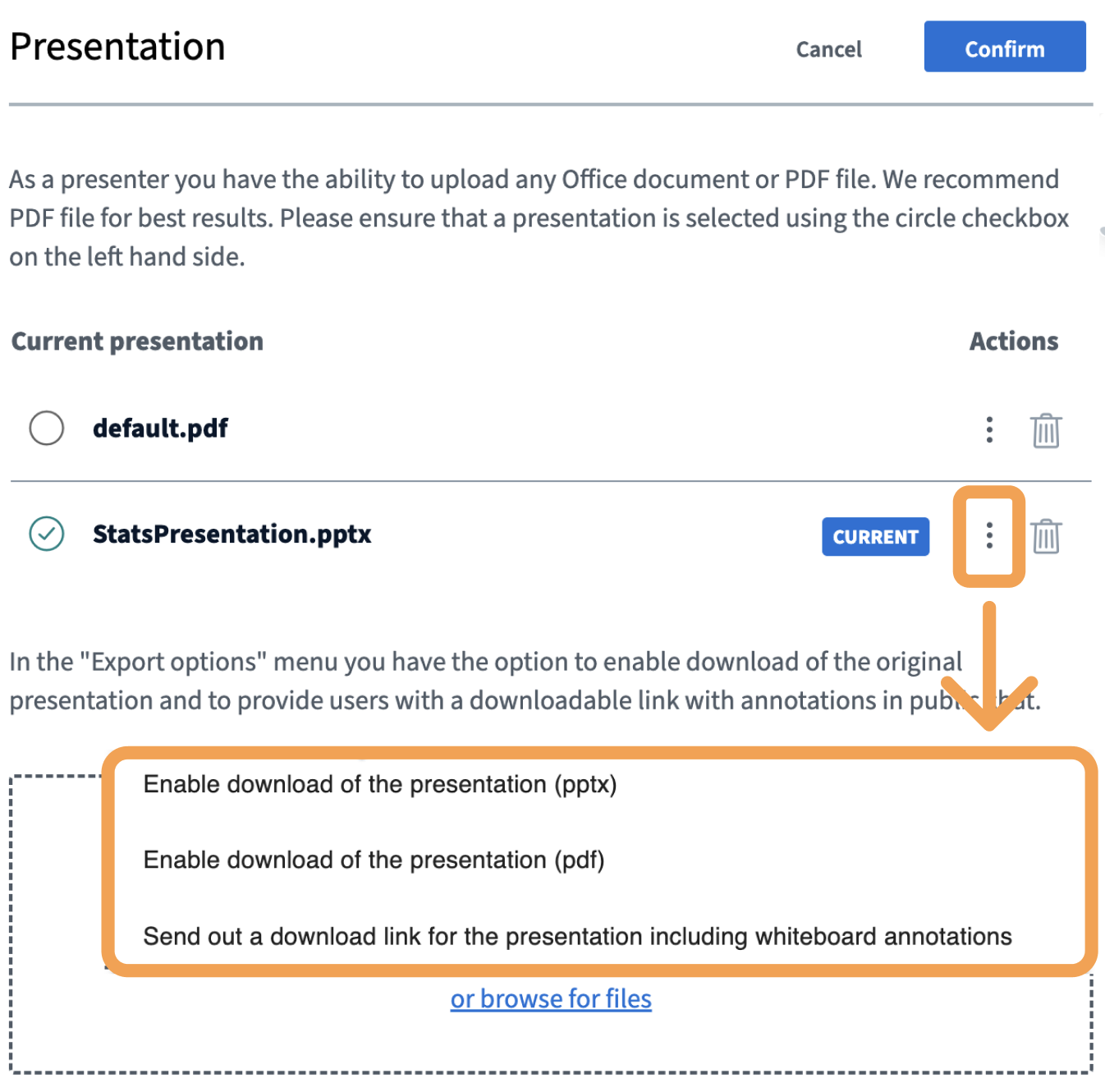
Any presenter uploading a document can enable it for download by viewers of the live conference at any time
Your presentation can be sent out to be downloaded as a .pptx, PDF, or link including the annotations.
You can also choose which presentation(s) you want to enable for download if you have multiple uploads.
What viewers see
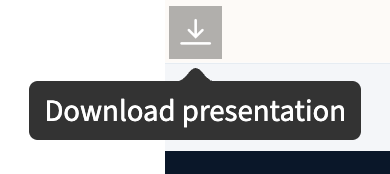
Viewers will be able to download the enabled documents via the file download icon in the bottom left corner of their presentation screens.
Switch between presentations
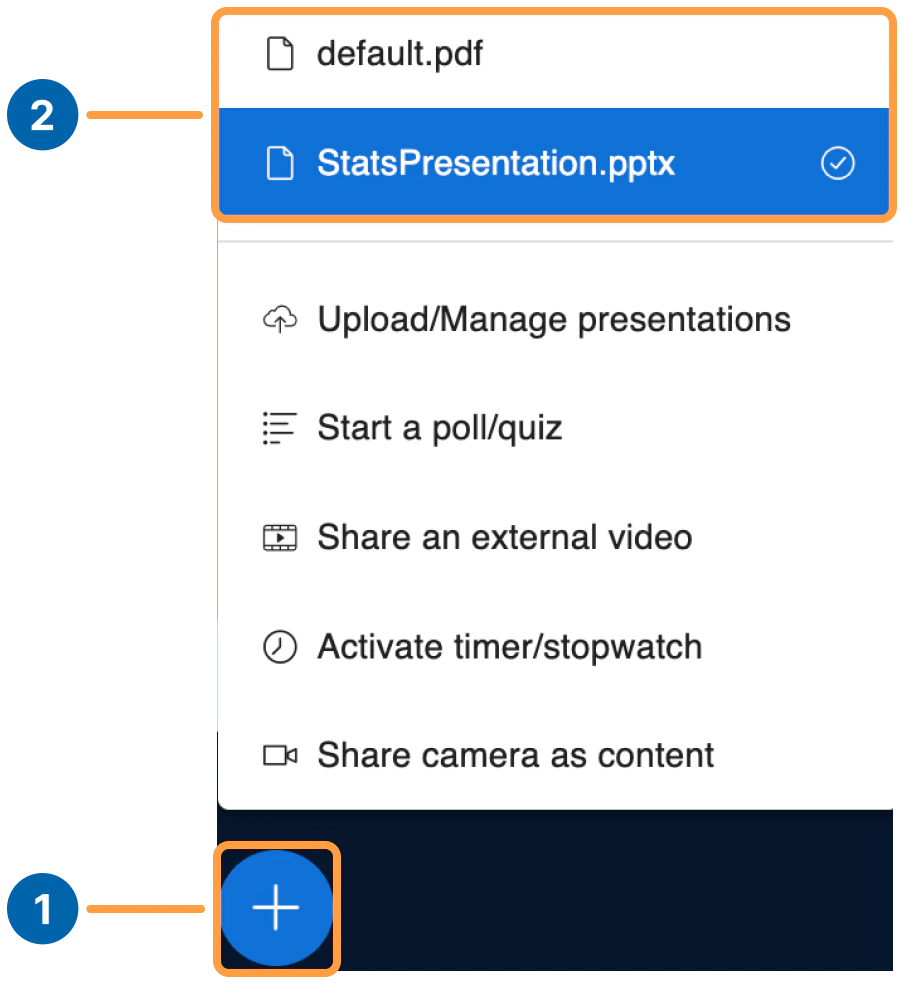
Once you have uploaded all of your presentations, you can then switch between them on the fly.
Select the Actions menu [1] in the lower left-hand corner of the presentation window, then choose a presentation from one of the already uploaded options [2].