Documentation Index
Fetch the complete documentation index at: https://bigbluebutton.com/docs/llms.txt
Use this file to discover all available pages before exploring further.
BigBlueButton automatically extracts poll/quiz questions (and video links) from your uploaded slides. We call it Smart Slides.
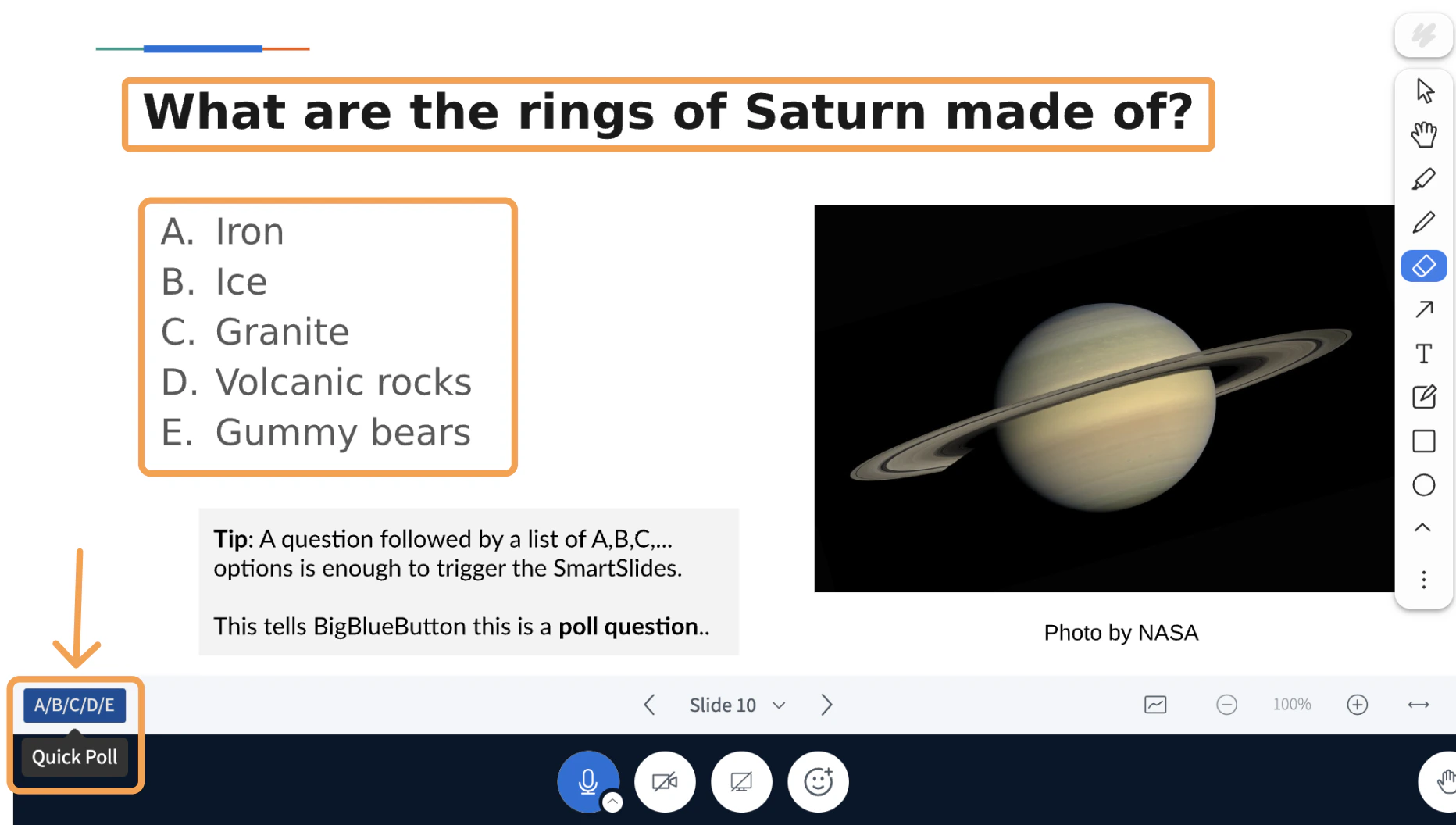
When you have a slide deck with poll-type questions, you’ll see a button to automatically start a poll.
You can find a **Quick Poll **button in the bottom left-hand corner of the toolbar to start your poll or quiz.
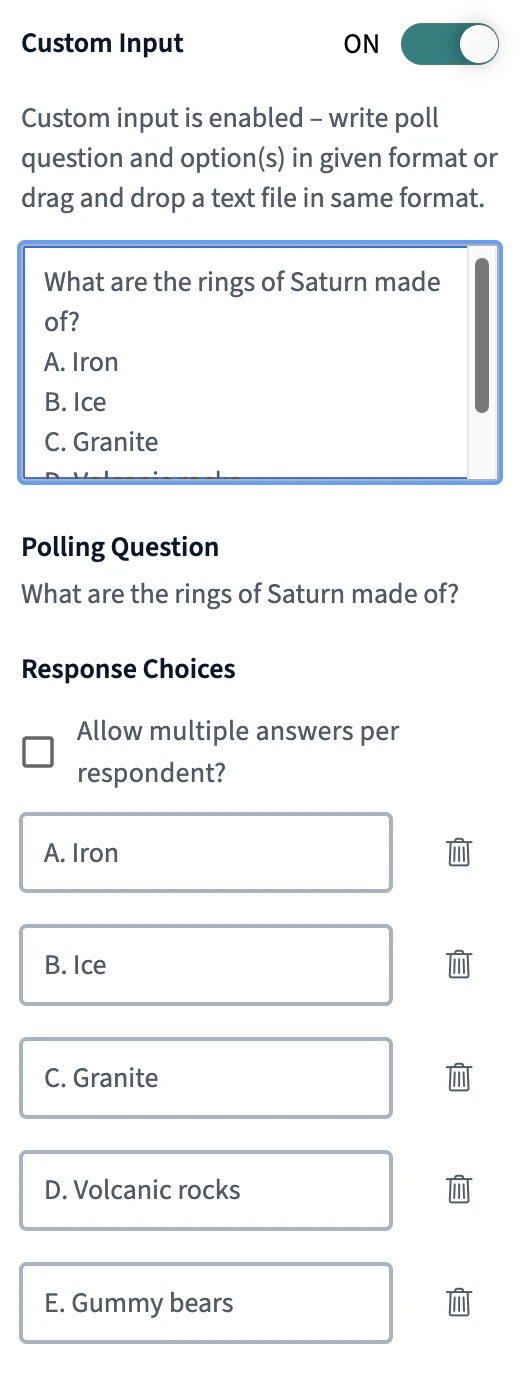
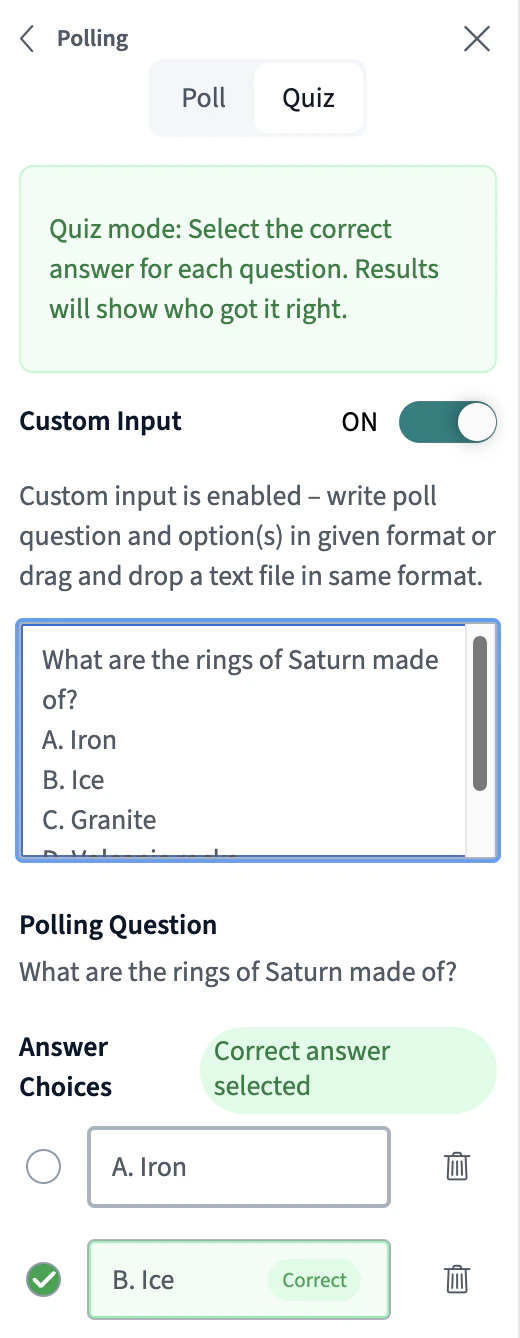
The poll will appear with the information extracted from the slide:
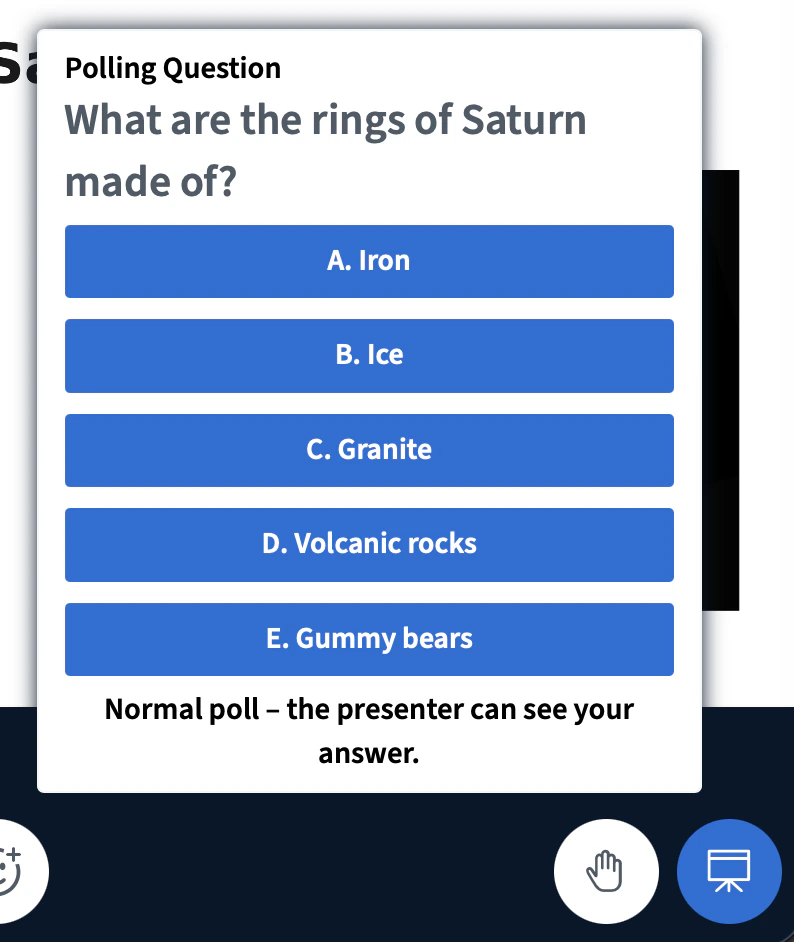
And appear to users when you start the poll or quiz:
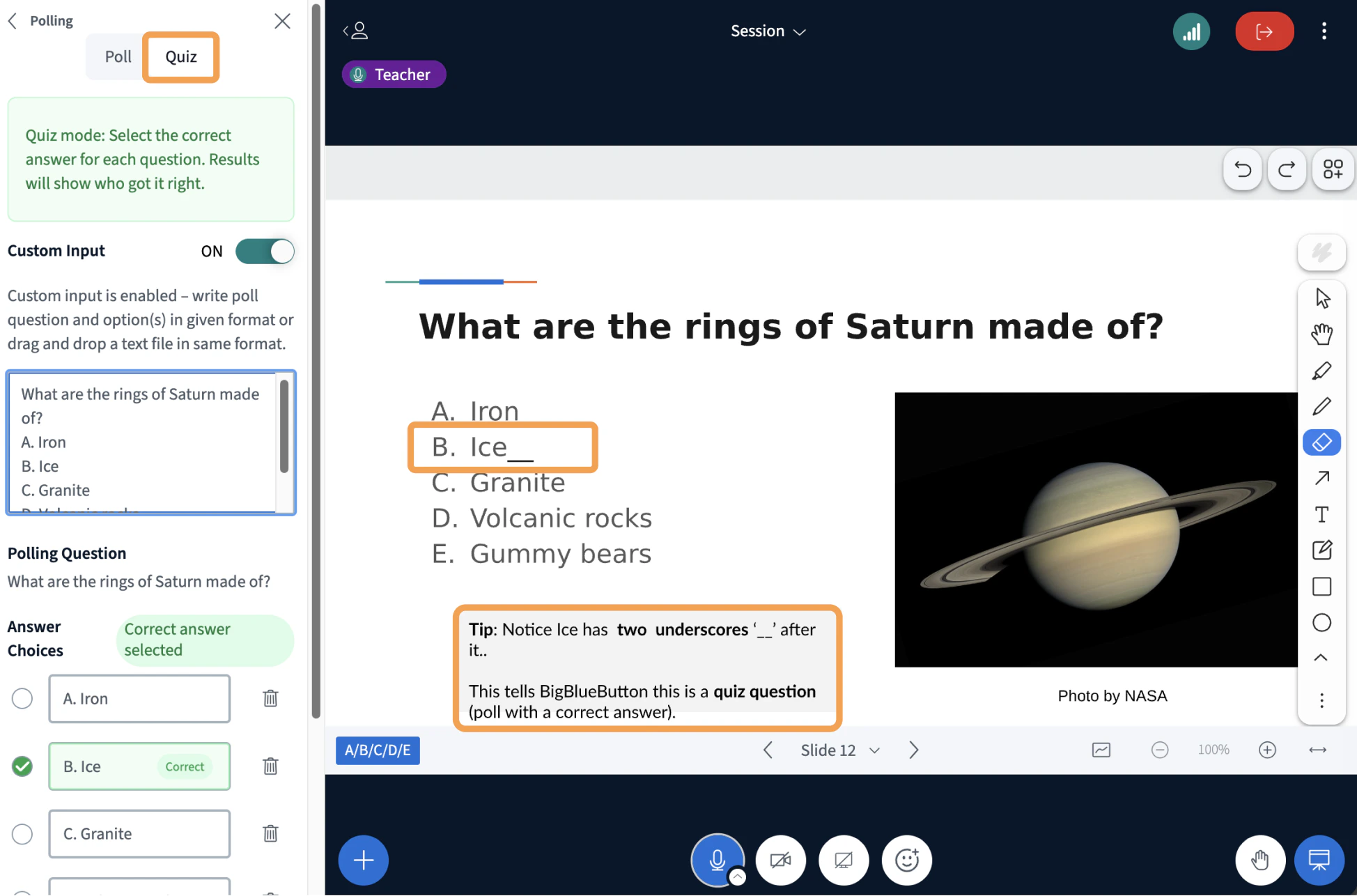
To start a quiz, add two underscore ”__” characters next to the correct answer on your slide.
Make sure the underscore characters are the same colour as your presentation background, so students cannot see it.
This will automatically create a quiz with the correct answer in place.
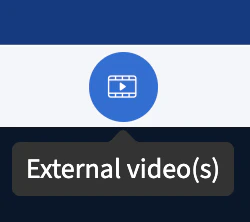
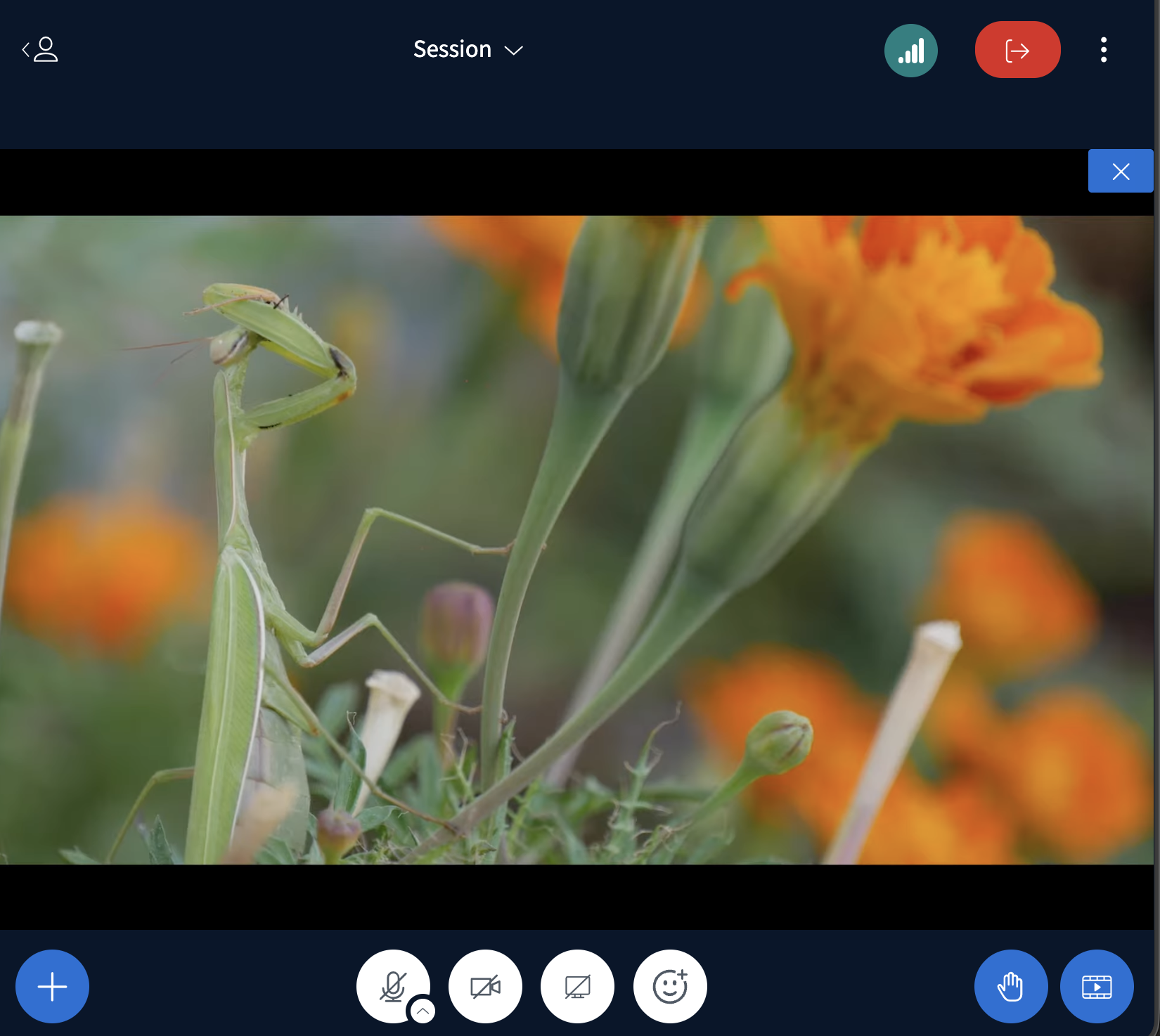
If you add an external video link to your slides, you can select the external video button, found in the bottom-left corner of the toolbar. This will play the video to everyone in the session.
Trying the features of Smart Slides
Below is a sample slide deck that you can use to try out Smart Slides in BigBlueButton.
Download it, upload to BigBlueButton, and look for the Smart Slides button when BigBlueButton has detected a poll question.