

Anyone can send chat messages in BigBlueButton; you can send both public and private chat messages. You can also choose to edit, react, delete and reply to messages in the chat.Documentation Index
Fetch the complete documentation index at: https://bigbluebutton.com/docs/llms.txt
Use this file to discover all available pages before exploring further.
Send a public chat message
To send a public chat message, select [1] Public Chat in the left panel, [2] type a message, then select Send message.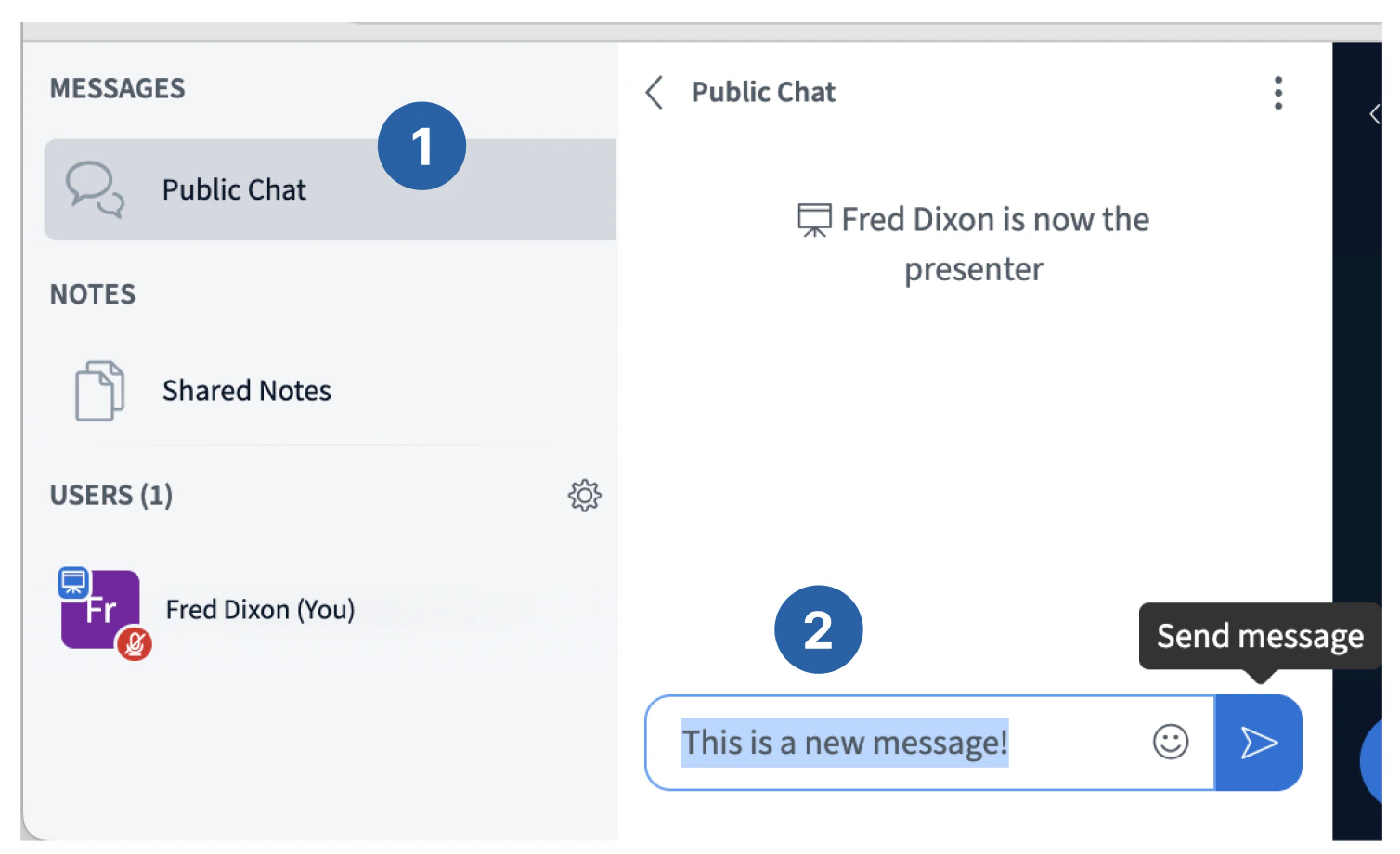
If the left panel isn't visible
If the left panel isn't visible
Select the User list toggle button to open/close it.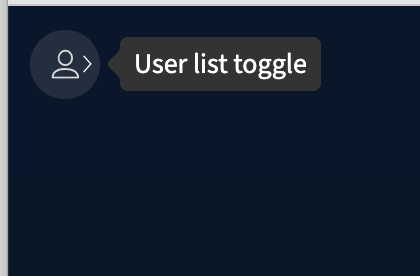
Send a private chat message
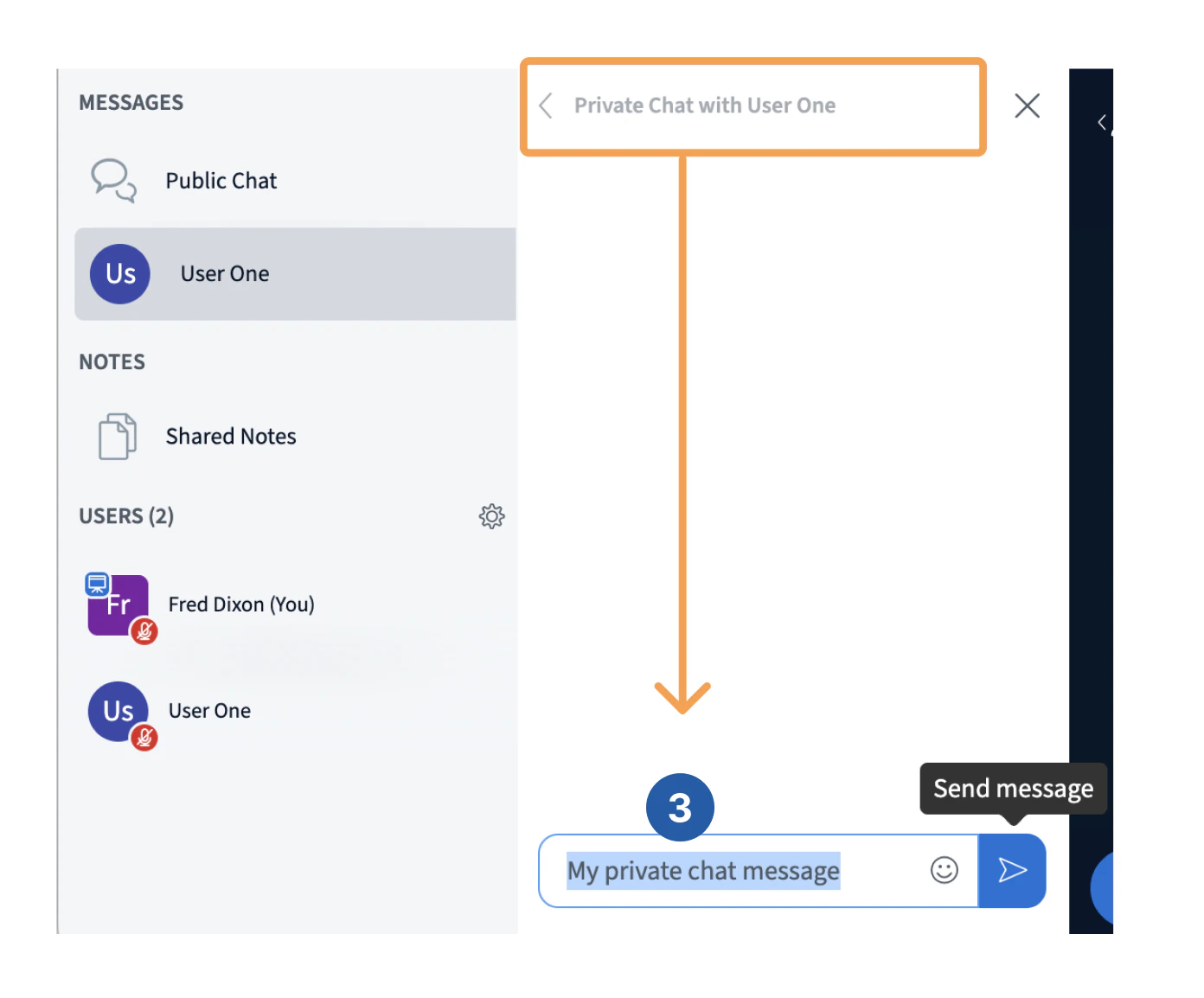
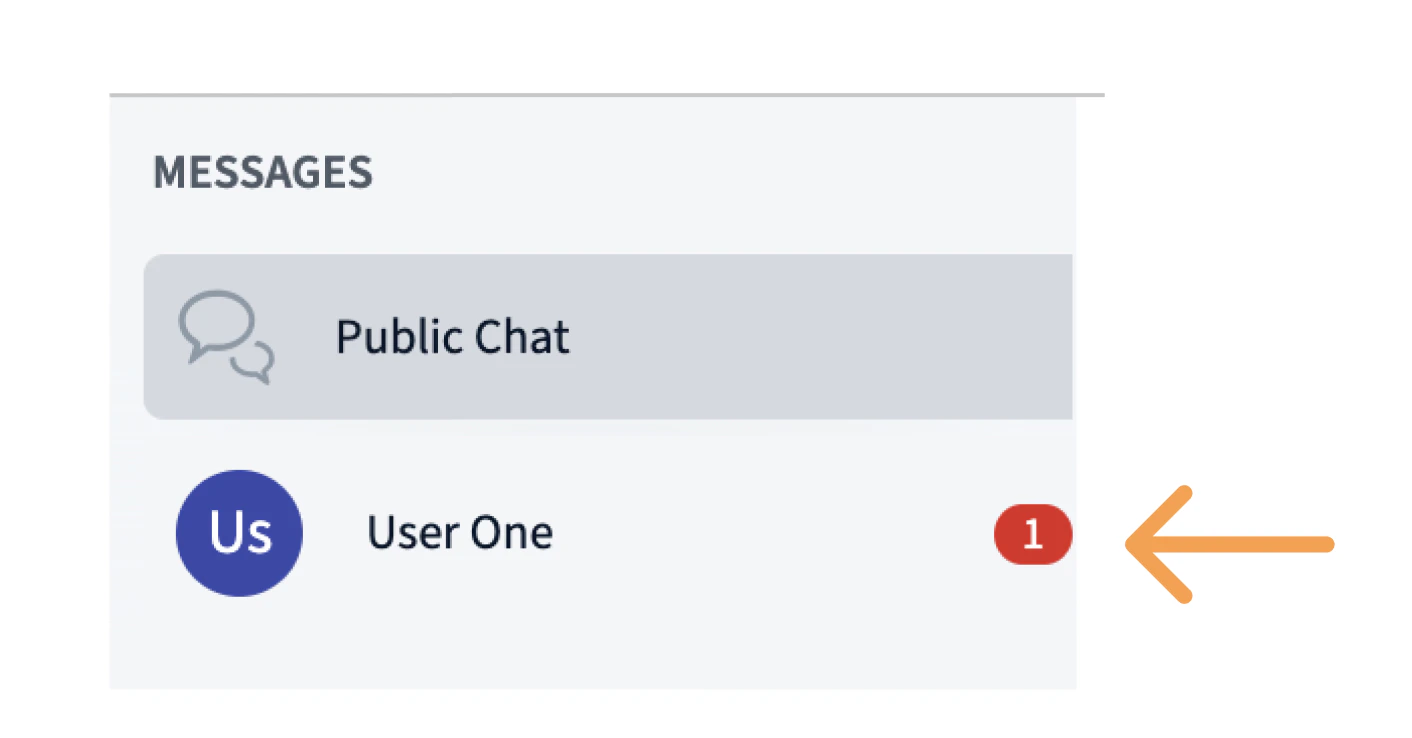
To start a private message to another user, [1] select the user with the mouse, [2] select Start a private chat. A new private chat panel appears to the right.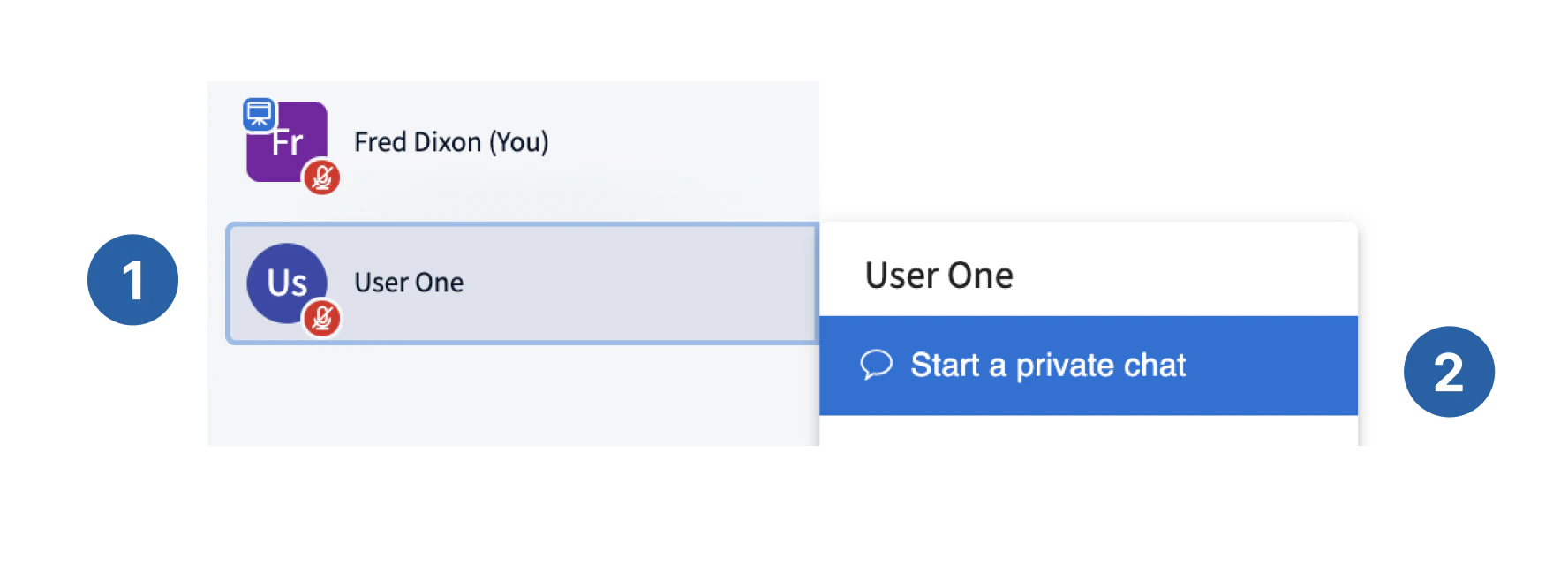
Chat message options
Moving your cursor over a chat message shows the message options bar with four options.- Reply to a message
- Add an emoji reaction
- Edit a message
- Delete a message
Reply to a message
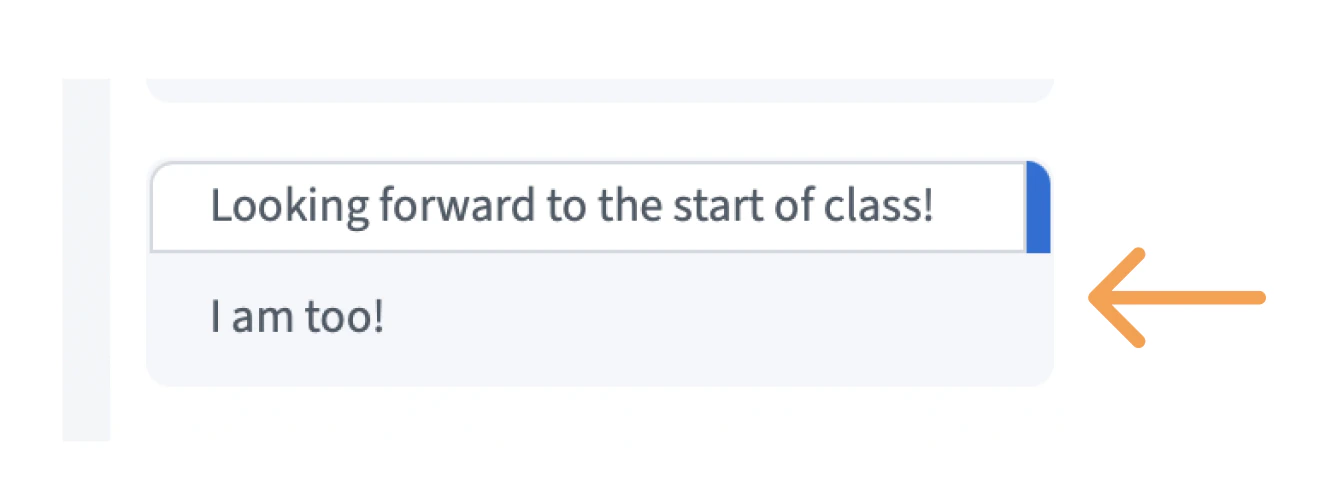
You can reply to a message, which makes a copy of the original with your reply. To reply to a message, move the cursor over the message and [1] select Reply to message. The selected message appears above the message field, then [2] type a reply and select [3] Send message.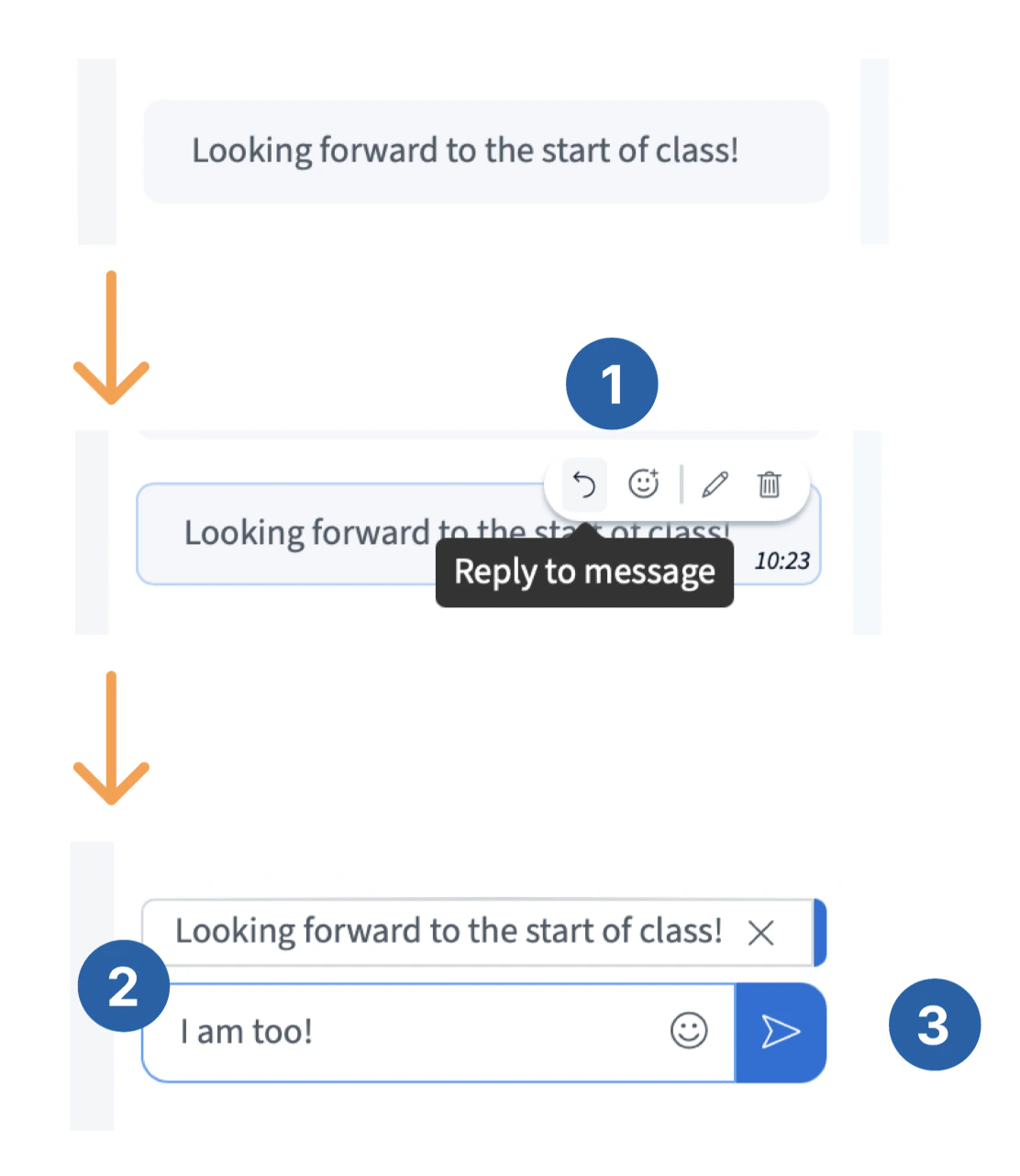
Add an emoji reaction
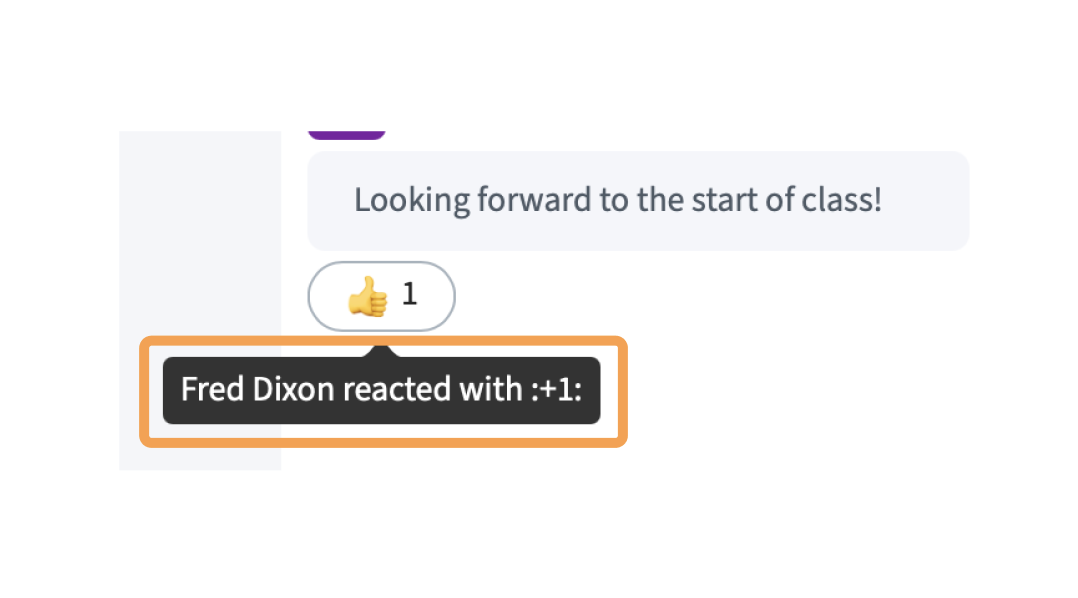
To add an emoji to a message, [1] select the React button from the message option menu and [2] select an emoji from the pop-up. [3] The emoji will appear under the message.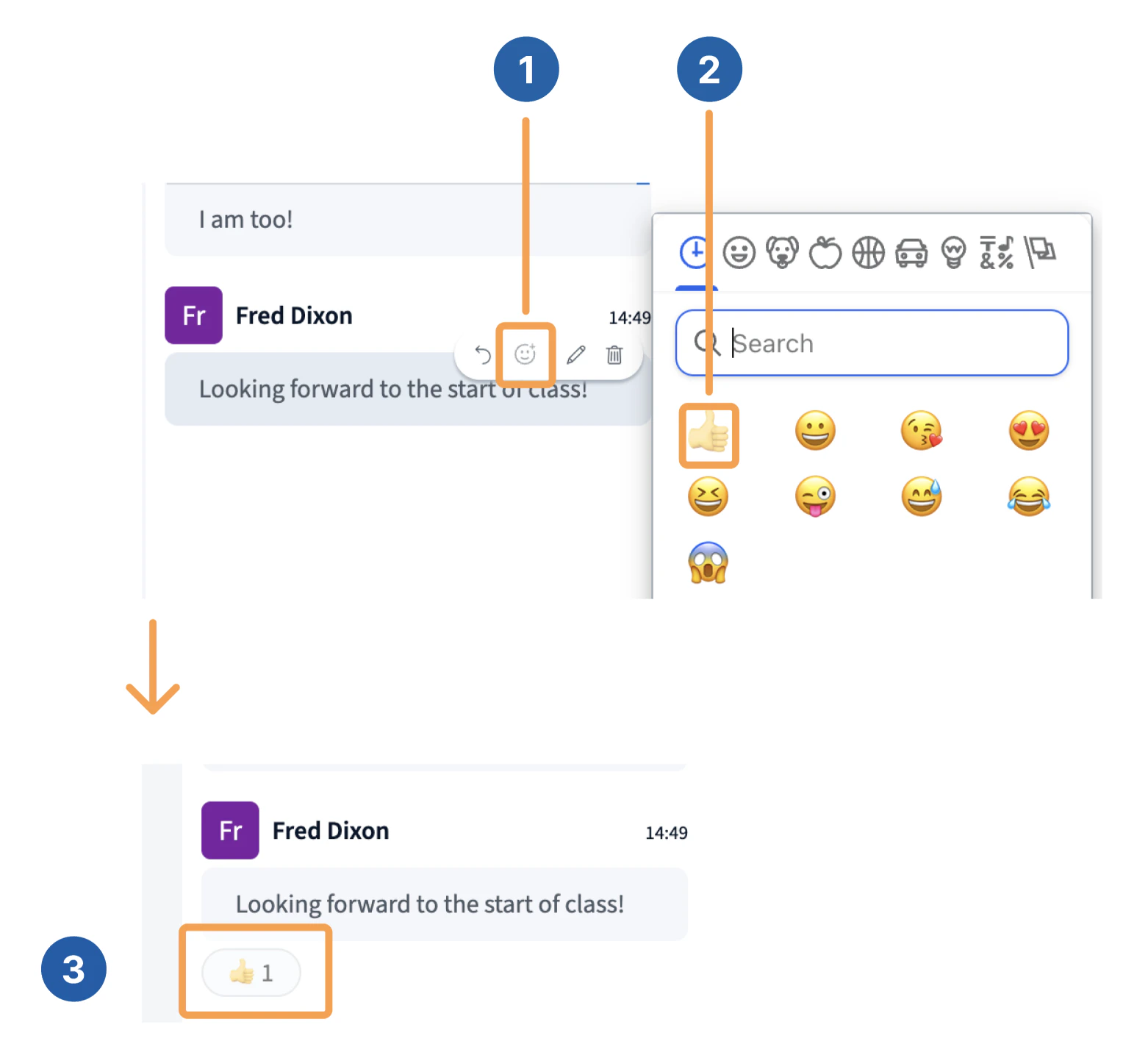
Edit a message
To edit a message, [1] select Edit from the options bar, [2] type in your new message and select Send message.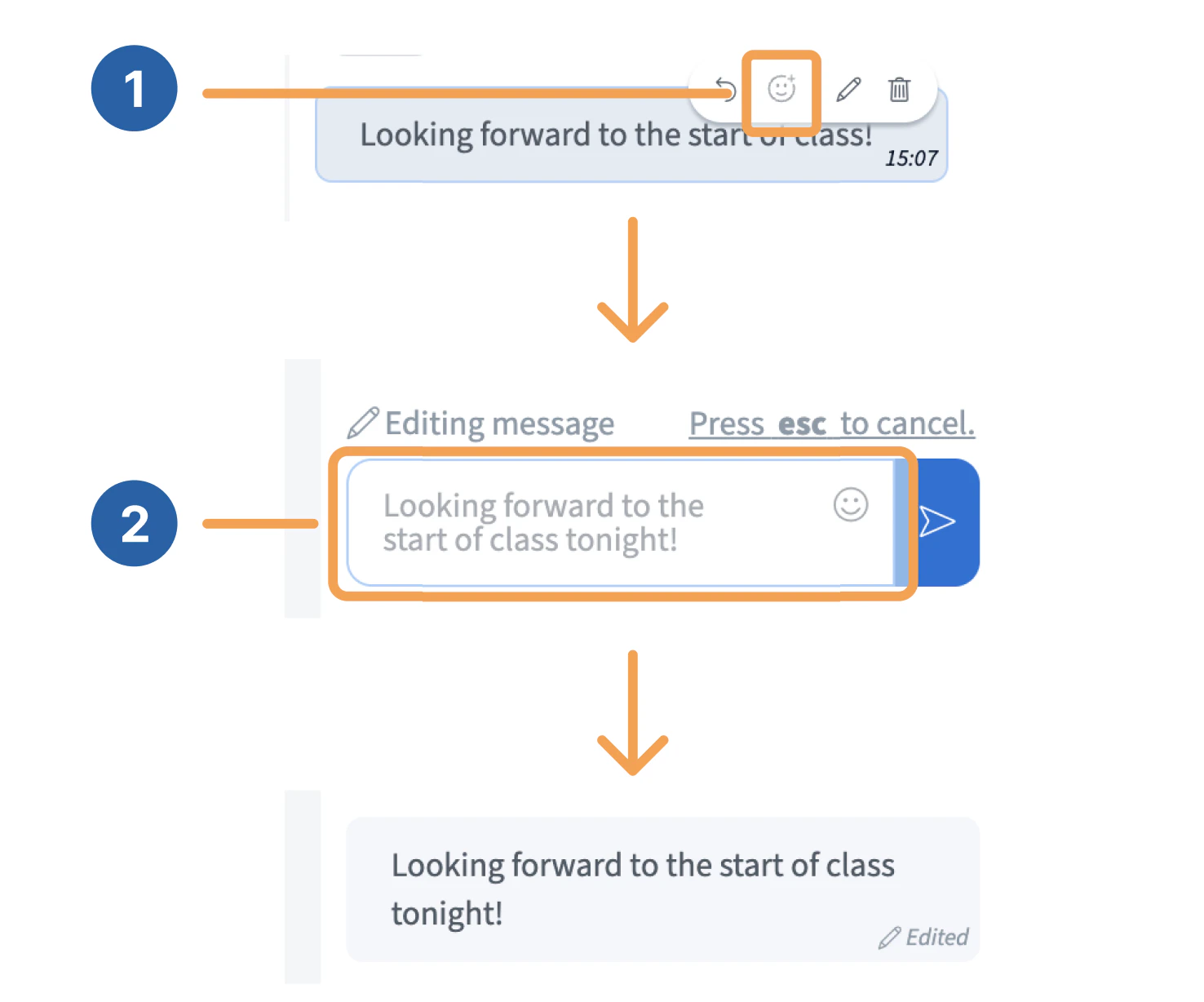
Delete a message
To delete your message, select the Delete message button in the options bar.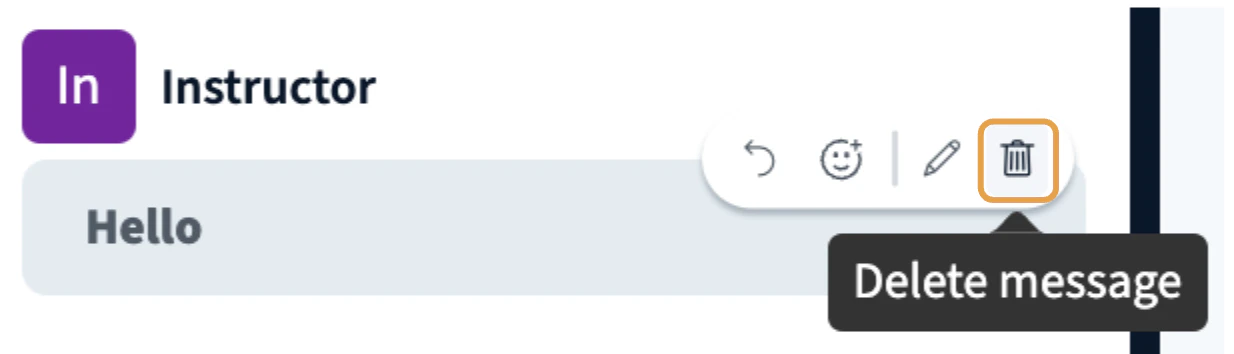
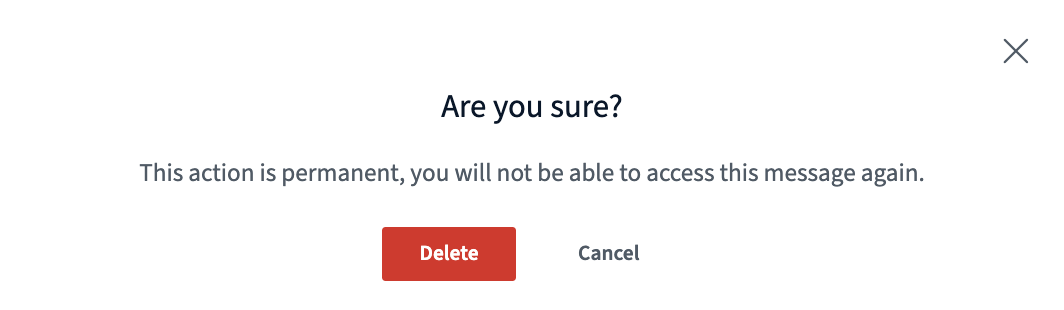
Viewers can only edit and delete their own chat messages. Moderators can delete any chat message.